

Emails / Friday January 23, 2026
9 Proven Ways to Find Any Email Address using Search & Social

Standard Google searches and basic LinkedIn checks only get you so far. Everyone knows those tactics. But there are dozens of lesser-known ways to find emails via search tricks and social media that most people overlook.
These advanced techniques dig deeper into search engine capabilities and tap into hidden social media features that surface contact information others miss. They’re not obvious, they’re not taught in basic guides, and they give you an edge when standard methods fail.
This guide covers the best search engine and social media tricks for email search that help turn dead ends into discovered emails. These email find tips are used by experienced researchers when everything else comes up empty.
1. Reverse Image Search for Contact Discovery
People use the same profile photos across multiple platforms. A reverse image search often reveals profiles on sites you hadn’t checked, and some of those profiles contain contact information.
Upload their LinkedIn or X (Twitter) profile photo to Google Images and click the camera icon to search by image.
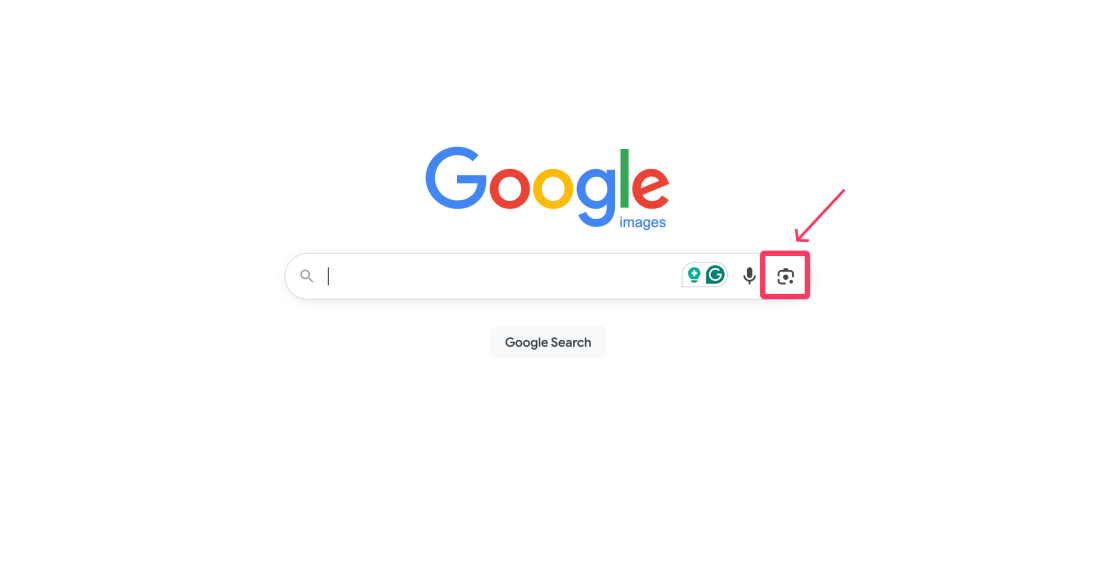
Google shows everywhere that photo appears online. Check the results for personal websites, forum profiles, or professional directories that might list their email.
You can also use TinEye as an alternative reverse image search engine. TinEye often finds different results than Google, especially on smaller sites and older pages. Simply upload the photo and browse through matches.
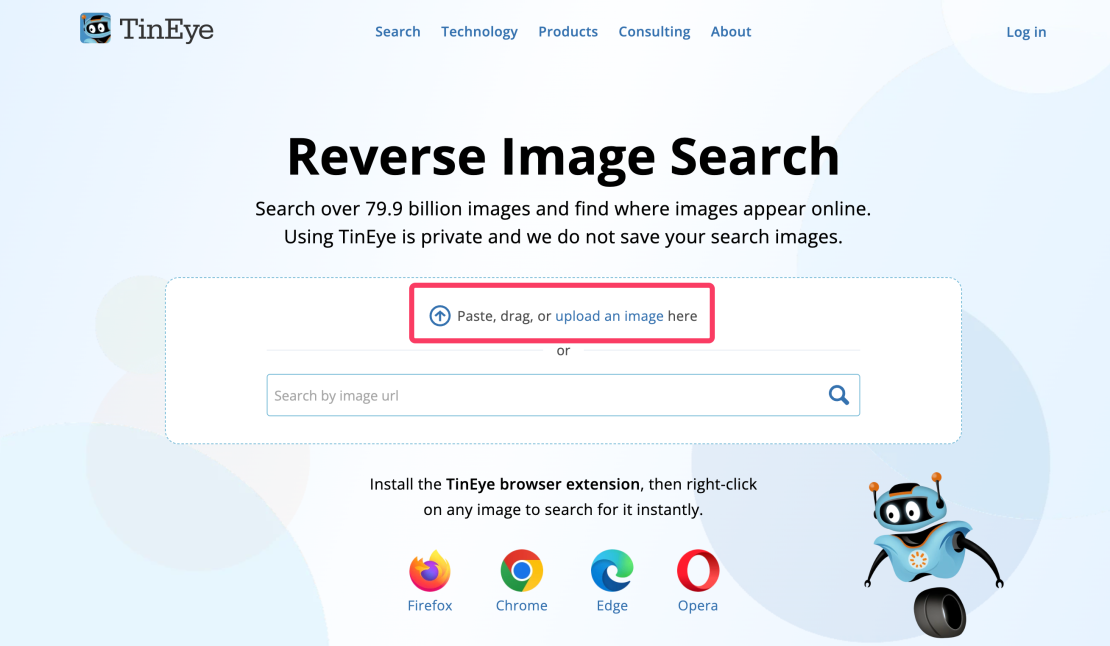
Look for author pages on Medium, Substack, or personal blogs in the image search results. Writers often use the same headshot across platforms, and their blog contact pages frequently include email addresses.
Pro tip: If someone changes their profile photo frequently, check their Instagram or Facebook for older photos and reverse search those too. Different images might lead to different platforms.
2. Email Signature Scraping from Public Documents
Many professionals sign documents, proposals, and presentations with full email signatures. These documents sometimes get uploaded to the public web, especially on sites like SlideShare, Scribd, or company resource pages.
Search “site:slideshare.net [Company Name]” or “site:scribd.com [Person Name]” to find presentations and documents. Download PDFs and Word files, then search within the document (Ctrl+F) for @ symbols to locate email signatures.
Check Google Drive and Dropbox public folders. Search “[Company Name] site:drive.google.com” or “[Company Name] site:dropbox.com” to find publicly shared folders that might contain documents with contact information.
Look for quarterly reports, investor decks, and white papers. These often include contact sections with emails for investor relations, media inquiries, or general information requests.
3. X List Mining
People organize X (Twitter) accounts into public lists, and these lists often group professionals by industry, company, or role. Finding the right list can surface dozens of relevant contacts at once.
Visit x.com/[username]/lists to see all public lists a person has created or been added to. If your target is on a “Tech Recruiters” or “SaaS Founders” list, everyone else on that list becomes a potential similar contact.
Search X for “[Industry] list” or “[Job Title] list” to find curated lists others have built. For example, searching “CMO list” reveals lists of marketing executives, many with contact info in their bios or pinned tweets.
Check who created valuable lists. People who curate industry lists are often well-connected and might have contact information themselves or can provide introductions.
4. Google Scholar and Academic Database Searches
Academics and researchers publish papers with institutional email addresses. Even if they’ve since moved companies, their academic profile often remains searchable and includes current contact information.
Search on Google Scholar for the person’s name. Click on their profile if available, which sometimes lists a current email address or institutional affiliation. Follow the affiliation to their university page where faculty directories include emails.
Check ResearchGate and Academia.edu profiles. Researchers maintain profiles on these platforms specifically for networking, so contact information is more likely to be public.
Look at paper co-authors. If you can’t find your target’s email, co-authors on their papers might be easier to reach and can provide an introduction.
Pro tip: University faculty directories are goldmines. If someone has an academic background, search “[Name] [University] directory” to find their institutional profile with a .edu email address they likely still monitor.
5. Browser Developer Tools for Hidden Emails
Websites sometimes hide email addresses from bots using JavaScript or CSS tricks. These emails are in the page code but invisible to regular visitors. Browser developer tools reveal them.
Right-click on a contact page and select “Inspect” or press F12 to open developer tools.
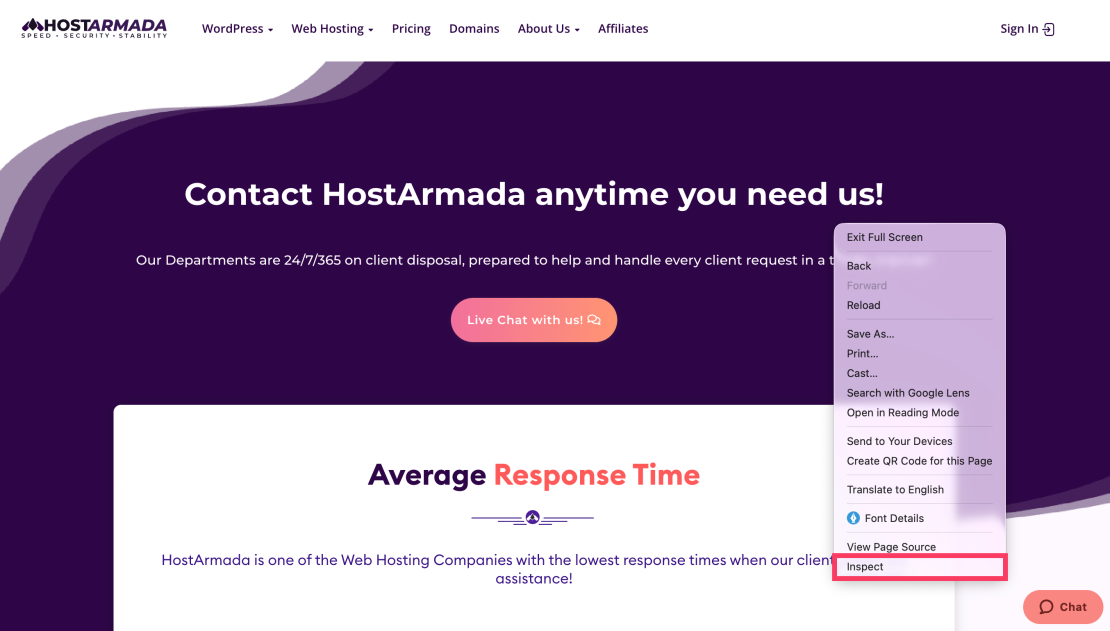
Press Ctrl+F (cmd+f in Mac) in the console and search for “@” to find any email addresses in the HTML, even if they’re hidden from view.
Check the source code for mailto: links. Search for “mailto:” in the page source (Ctrl+U in most browsers) to find email links that might be styled invisibly or placed in hidden elements.
Look for JavaScript that generates emails dynamically. Some sites split emails into parts and reassemble them with code to avoid scraping. You can see the parts in the source and manually reconstruct the full address.
Pro tip: Check the page’s meta tags and comments. Developers sometimes leave contact information in HTML comments <!– like this –> or in meta tags for SEO purposes that aren’t displayed to visitors.
6. Reddit and Forum Deep Searches
Reddit, Quora, and niche forums contain years of posts where people casually mentioned their contact information in discussions, AMA threads, or when offering services.
Use Reddit’s search with “author:[username] email” or “author:[username] contact” to find posts where someone shared their email. People often share contact info in old posts when doing AMAs or asking for collaboration.
Search site-wide with “site:reddit.com [Person Name] email” on Google. Reddit’s internal search misses a lot, but Google indexes everything. This finds comments and posts Reddit’s own search won’t surface.
Check niche community forums related to their industry. If they’re in tech, search Hacker News, Stack Overflow, or GitHub discussions. Design professionals appear on Dribbble and Behance.
7. Wayback Machine Historical Email Recovery
Websites change over time, removing or updating contact information. The Wayback Machine archives these historical versions, often preserving emails that no longer appear on current sites.
Visit web.archive.org and enter the company or person’s website.
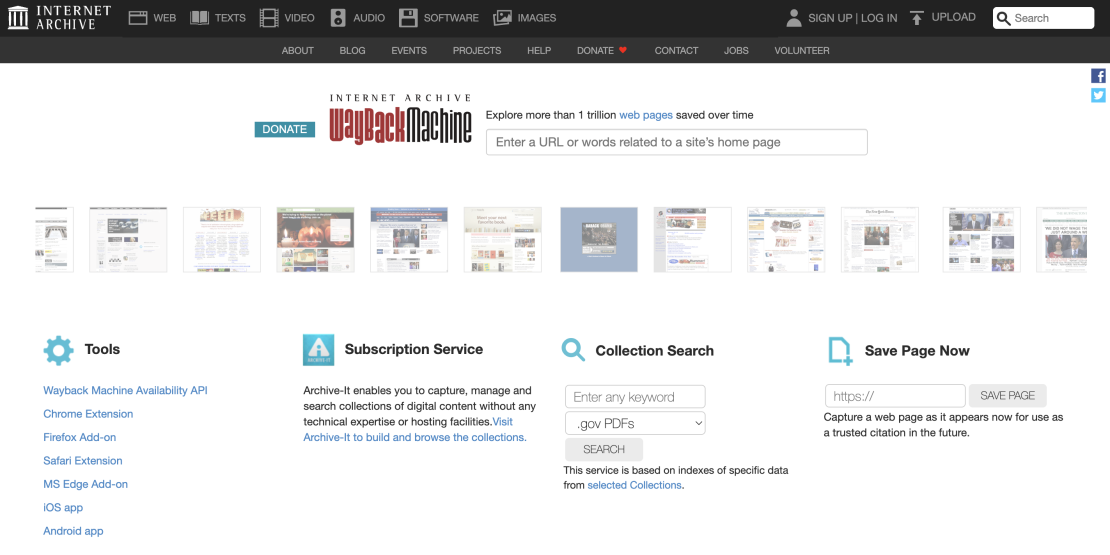
Select dates from the calendar to view historical snapshots. Check older versions of about pages, contact pages, and team pages.
Look for dates around major company events. Check snapshots from when someone first joined the company, when they launched a product, or during funding rounds. Press releases and team pages from these periods often included contact details.
Compare multiple snapshots. If an email appeared consistently across many archived versions, it’s likely still valid even if removed from the current site.
Pro tip: If the main contact page shows no history, try specific URLs like /about, /team, /press, or /leadership. The Wayback Machine archives individual page URLs separately.
8. Chrome Extensions for Contact Extraction
Several Chrome extensions automate parts of the email finding process by extracting contact information as you browse normally. These aren’t email lookup tools; they enhance your browser’s ability to surface existing information.
Hunter’s Chrome extension reveals emails as you browse company websites and LinkedIn profiles.
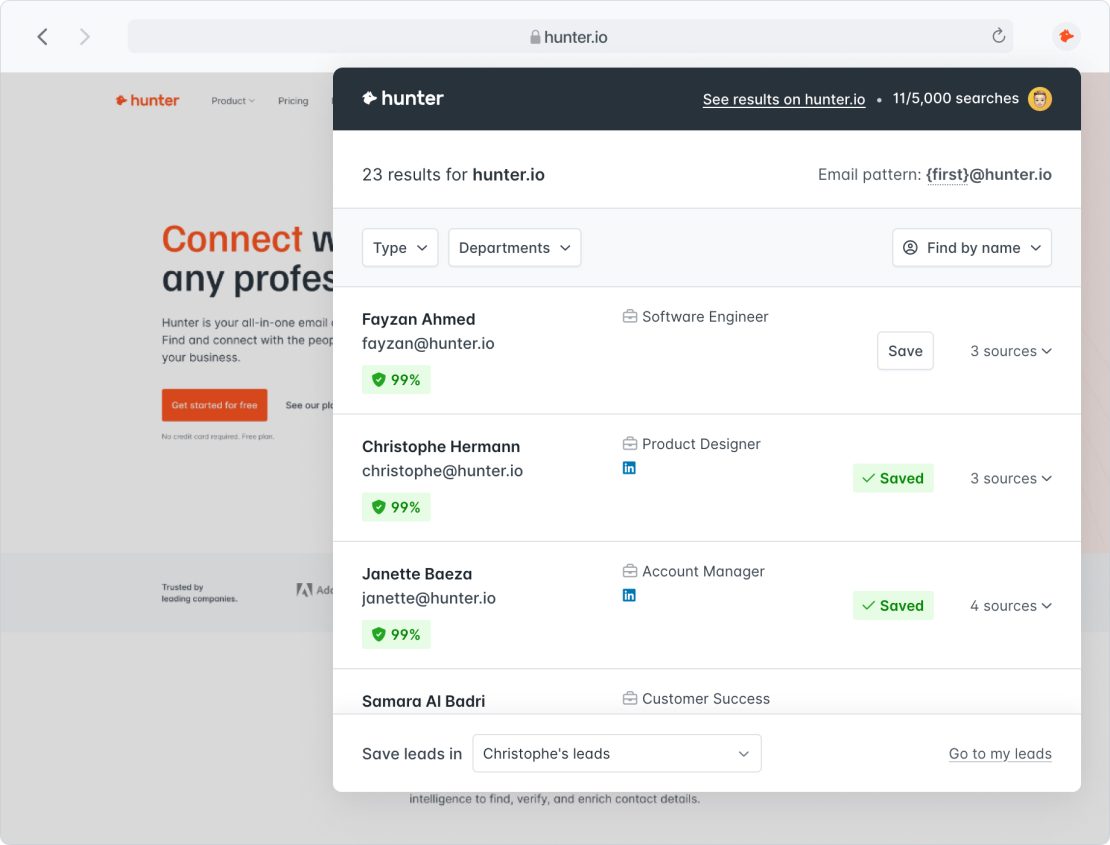
It integrates directly into the pages you’re already viewing, showing verified emails without leaving the site.
Email Extractor extensions pull all email addresses from the current page into a list. This helps when scanning long pages or PDFs opened in the browser where manual searching would take forever.
Contact Out for LinkedIn extracts emails and phone numbers from LinkedIn profiles as you browse. It works on both regular profiles and Sales Navigator search results.
9. Google Alerts for Future Discovery
Sometimes you can’t find a current email, but you can set up automatic alerts for when contact information appears online in the future. Google Alerts monitors the web continuously for your search terms.
Create a Google Alert for “[Person Name] email” or “[Person Name] contact“.
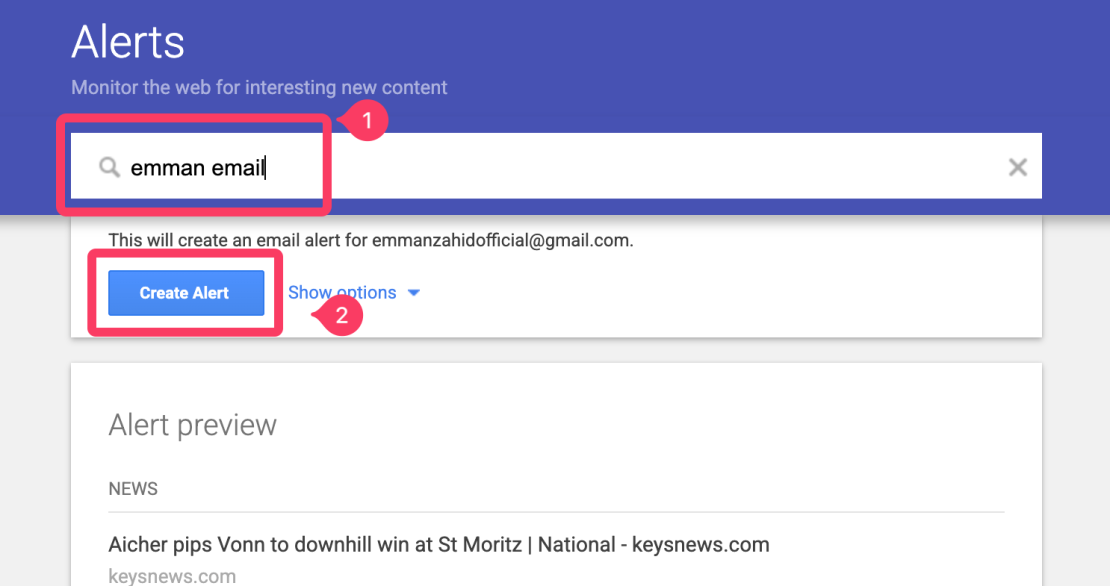
Google emails you whenever new pages mention these terms together, catching blog posts, press releases, or directory listings as they’re published.
Set alerts for specific domains: “[Person Name] site:company.com“. This notifies you when someone’s name appears on their company site, often from new press releases, team page updates, or blog posts that include author contact information.
Use alerts for event announcements. Search “[Person Name] speaker” or “[Person Name] webinar” to catch speaking engagements where organizers typically publish speaker contact details.
Pro tip: Set alert frequency to “as it happens” for high-priority contacts and “weekly digest” for lower priorities. This prevents inbox overload while ensuring you catch time-sensitive information quickly.
Combine Obscure Email Search Methods Strategically
These advanced techniques work best when layered with standard methods. Start with obvious tactics (LinkedIn, Google operators), then deploy these tricks when initial searches fail.
Reserve time-intensive methods for high-value prospects. Reverse image searching, transcript mining, and archive diving take 10 to 20 minutes per person. Use them selectively for contacts who justify the investment.
Track which obscure methods work for your target market. Academics appear in Google Scholar. Executives show up in archived press releases. Developers leave trails on GitHub and Stack Overflow. Learn patterns that predict where different professional types appear.
Build a personal toolkit of proven tricks. When you discover a technique that works repeatedly, document it with examples and add it to your standard workflow. Over time, you’ll develop a customized approach optimized for your specific prospecting needs.
Pro tip: Join communities like r/sales or growth marketing Slack groups where professionals share email finding tactics. New techniques emerge constantly as platforms change and add features.
Protect Your Email Search with Reliable Infrastructure
You’ve used reverse image searches and checked archived pages to find verified email addresses. These advanced techniques take real time and skill. The last thing you want is technical infrastructure problems wasting all that effort.
Obscure search methods often surface older email addresses or contact information from years ago. These addresses need a reliable sending infrastructure even more than fresh contacts because they might not be actively monitored. Poor hosting means your carefully researched emails never get seen.
At HostArmada, we provide email hosting that honors your research investment. Our infrastructure ensures messages reach inboxes regardless of how you found the address. Proper authentication, clean IP reputation, and active monitoring protect the contact information you worked hard to discover through advanced techniques.
Compare our hosting plans to find the right fit for your email outreach needs.
FAQs
Yes, when you’re accessing publicly available information. Everything in this guide uses information that’s openly accessible without hacking, bypassing security, or violating terms of service. However, you must still comply with GDPR, CCPA, and CAN-SPAM when using discovered emails for outreach.
Reverse image search and archived pages produce the most consistent results because they tap into stable sources (people reuse photos, archived content persists). Browser developer tools work great when contact pages exist but hide emails. Results vary by target market and individual online presence.
Advanced methods help but someone who deliberately maintains a minimal digital footprint will be harder to find, regardless of the technique. In these cases, consider whether cold outreach is appropriate or if warm introductions through mutual connections work better.
No. Opening developer tools (F12) and using Ctrl+F to search for “@” requires no coding knowledge. You’re simply viewing the page’s underlying code. Five minutes of practice make this technique accessible to anyone comfortable using a web browser.
