

Uncategorized / Thursday June 18, 2026
How to Set Up Best Seller Recommendations in WooCommerce (Step-by-Step)
Step into any successful retail shop, and you will find that the top-selling products get showcased in the most prominent places. This is just as true for online retail businesses. Consumers who get a clear sense of what is trending tend to be more confident about what they are buying, which directly contributes to more sales.
The best-selling product recommendations provide one of the best values to WooCommerce business owners for the minimum effort involved. You no longer have to rely on consumers stumbling upon your best sellers, since you can make them known to everyone right up front. You will end up with a more rewarding shopping experience for visitors and higher overall conversions.
We take you through everything from the basics and importance of best seller recommendations to a simple step-by-step guide on adding such recommendations to your WooCommerce store using a recommendation plugin.
What Are Best Seller Recommendations?
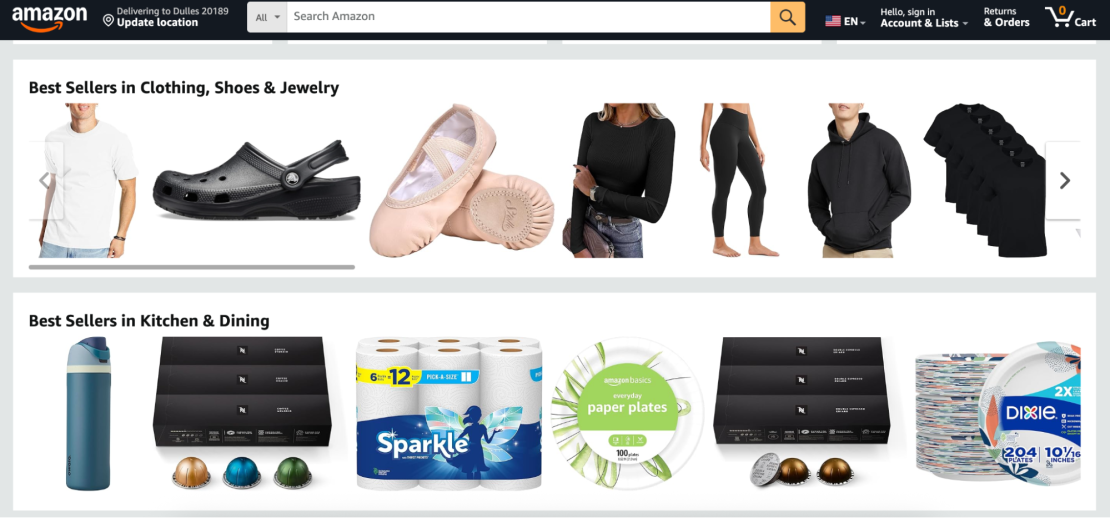
The best-seller section features products recommended based on customer popularity. It serves as a form of social proof by encouraging customers to purchase something popular and proven high quality, thereby overcoming their reluctance to buy.
You will see such sections as “Best Sellers,” “Trending Products,” or “Shoppers’ Favorites” on the world’s largest platforms like Amazon and Etsy. The name of the section is not just there for looks but an essential part of it. Consumers always feel confident about the quality of popular products; that is why any best-seller list will yield better results than any other list of products.
It is especially important for online stores that use WooCommerce, as they lack the reputation built by a popular platform.
Recommendations for best sellers also serve another purpose, apart from building trust: making the decision process simpler for the customer. A customer who doesn’t know which product to purchase will be more inclined to browse than to decide. Providing him with a list of recommended products helps him get started.
Why Add Best Seller Recommendations in WooCommerce?
Improve the Overall Shopping Experience
When the products are surfaced at the appropriate time, the store appears intuitive. This is because the best-seller suggestions lower the cognitive effort involved. Rather than seeing all kinds of items in full, users can see a curated list of products that have been appreciated by others.
Help Shoppers Discover the Right Products Faster
Not all visitors come with an idea about what they wish to purchase. In such cases, a bestseller’s shelf will guide them on their journey towards a product already known to attract attention. The shopping process becomes smooth for the customer, who purchases a product in no time.
Increase Average Order Value
Those who use the best-seller recommendation will add many items to their cart compared to shoppers who do not use such a suggestion. This is because of the “while I am here” factor. Complementing this with WooCommerce gift cards is another effective strategy – customers buying gifts tend to spend more, and pairing a gift card option with your top sellers makes gifting easy.
Drive More Conversions
If customers come across popular products at the right time while browsing the homepage, a specific category page, or a specific product page, their chances of impulsively adding the product to their shopping cart will increase significantly. If popular products and discounts are bundled together using tools like a WooCommerce coupon code generator, even more sales can be made.
Build Credibility using Social Proof
The new customers have not yet developed any shopping history on your website and therefore have no basis to trust your company at all. The best-seller tags overcome this hurdle for you, as they show that real customers have bought these items.
Re-engage Shoppers Who Don’t Convert the First Time
Not every visitor buys on their first session. Combining on-site best seller recommendations with abandoned cart recovery emails lets you follow up with shoppers who showed interest but didn’t complete a purchase. Featuring your best sellers in those follow-up emails gives customers a compelling reason to return.
How You Can Add Best Seller Recommendations in WooCommerce: Step by Step
There isn’t an in-built feature in WooCommerce for showcasing best sellers. Although short codes work well in generating a basic best-sellers list, they give no room for customization. Shortcodes are hard to manage in terms of position, design, and filtering.
WebToffee’s WooCommerce Product Recommendations is one of the most advanced plugins available. It offers over 10 campaigns, including best sellers, frequently purchased products, recently viewed products, and more. All of these campaigns can be configured using an intuitive visual configuration interface without writing any code.
Here is how you can start showing recommendations for best-selling products on your website.
Step 1: Install the WebToffee Product Recommendations Plugin
The full-featured version of the plugin is available for purchase on the WebToffee website. Once you’ve completed your purchase, download the ZIP file from your account, then head to your WordPress dashboard. Go to Plugins > Add New > Upload Plugin, select the ZIP file, and click Install Now. After installation is complete, activate the plugin.
Step 2: Create a New Recommendation Campaign
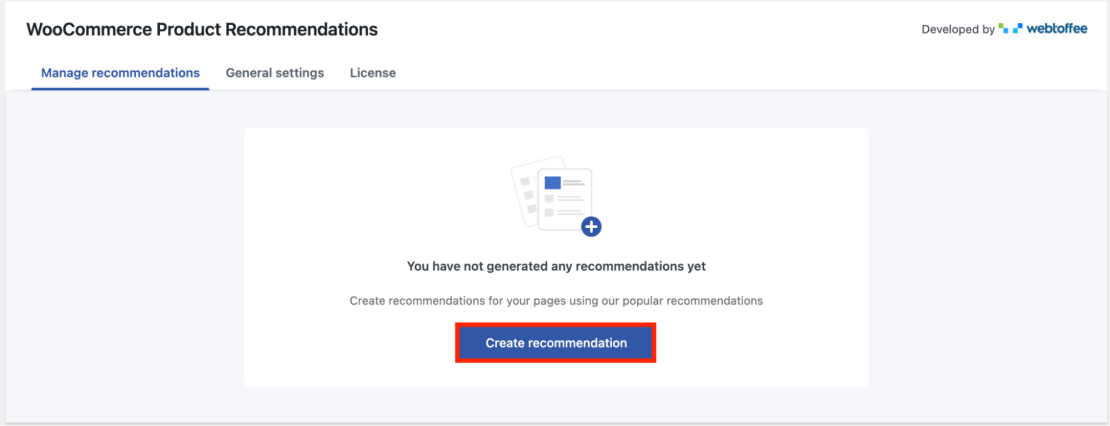
With the plugin active, navigate to WooCommerce > Product Recommendations in your WordPress dashboard. This is your central hub for managing all recommendation campaigns. To get started, click the Create Recommendation button in the top right corner.
Step 3: Select a Page and Choose the Bestsellers Template
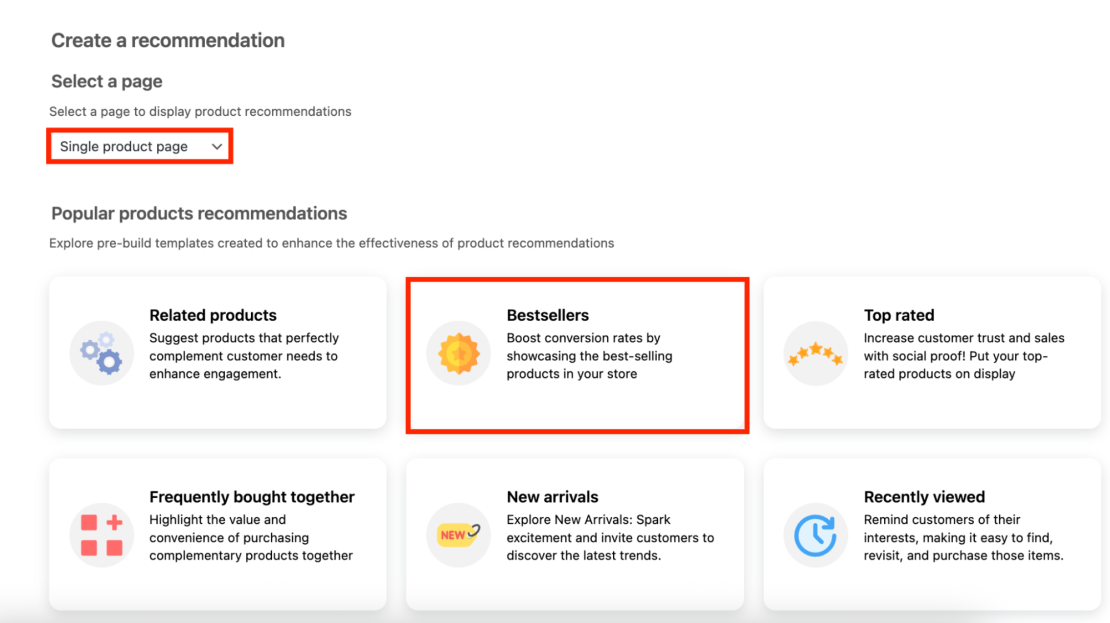
A setup panel will appear. From the Select a Page dropdown, choose where you want the recommendation widget to appear. This could be the Single Product Page, Shop Page, Cart, or Checkout. Pick whichever is most relevant to where your customers spend time.
Once you’ve selected a page, you’ll see a list of available recommendation templates. Select the Bestsellers template. This tells the plugin to automatically populate the widget with your store’s top-selling products based on sales data.
Step 4: Configure Display Settings and Conditions
With the template selected, you can now fine-tune how the recommendations behave:
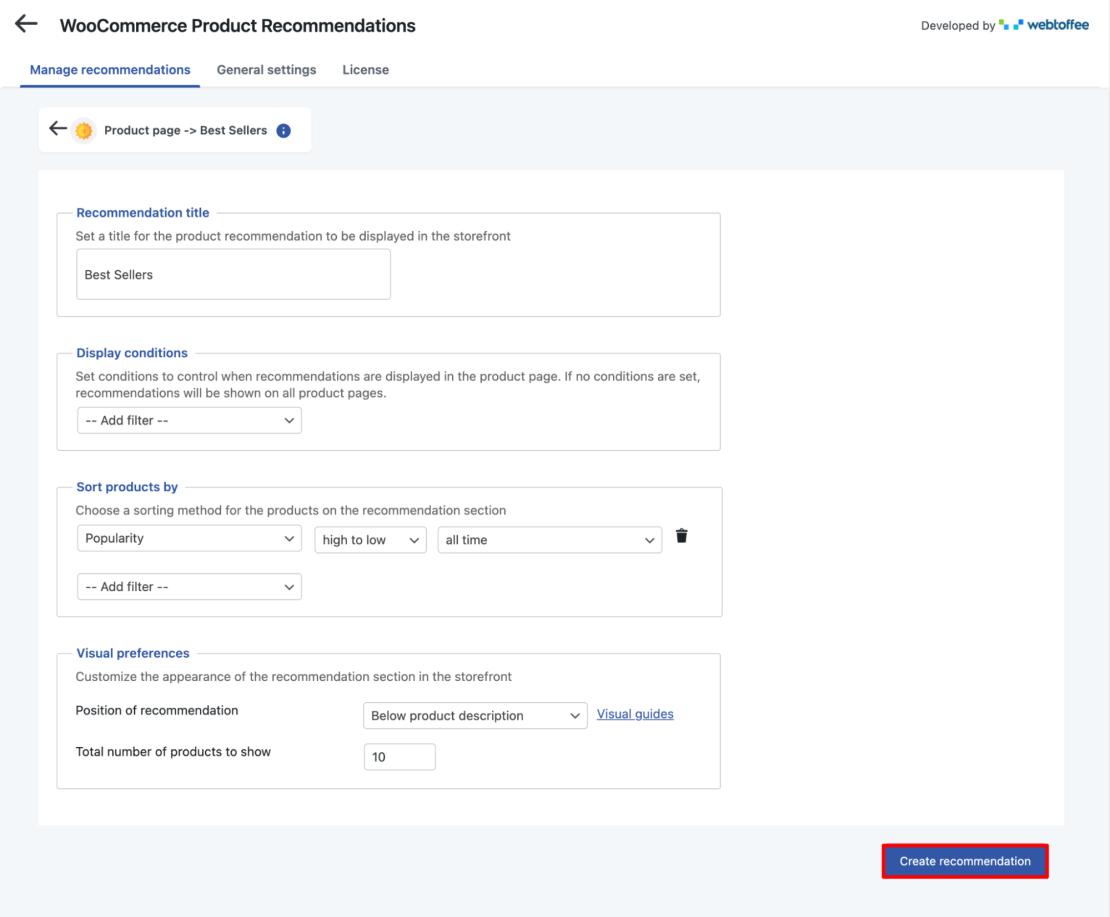
- Recommendation Title: Enter the heading shoppers will see, such as “Best Sellers” or “Our Most Popular Products.”
- Display Conditions: Add filters to control which pages the widget appears on. If you leave this blank, the recommendations will show on all pages of the selected type.
- Sort Products By: Choose how products are ranked within the widget – by total sales, recent sales, or other criteria.
- Visual Preferences: Set the number of products to display, choose between a grid or slider layout, and configure any other display options to match your store’s style.
Step 5: Save and Publish
Once everything is configured to your liking, click the Create Recommendation button to save and activate the campaign. The best-seller widget will now appear live on your store based on the conditions you set.
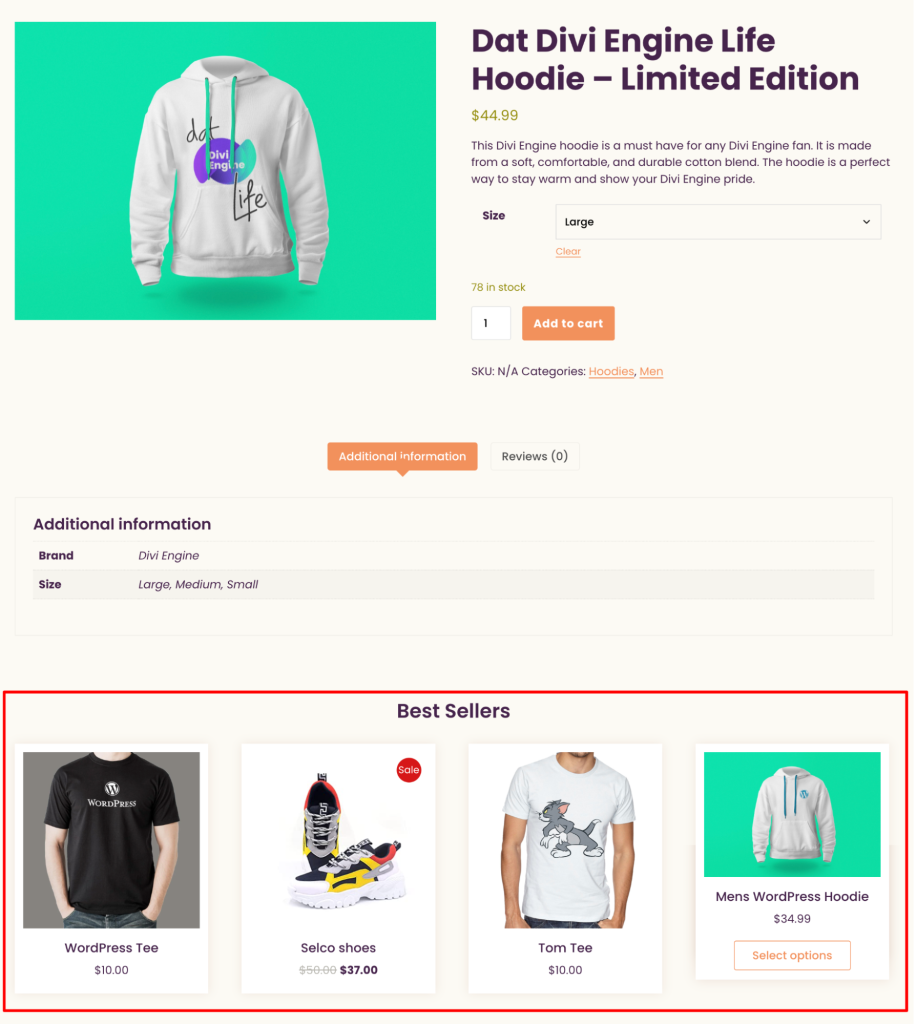
That’s all it takes. From here, you can return to the dashboard to create additional campaigns, adjust conditions, or set up different recommendation types for different parts of your store.
Going Beyond Best Sellers: Other Ways to Boost Product Discovery
Best seller recommendations are a strong foundation, but they work even better when combined with other discovery and retention tools. Here are a few worth considering:
Upsell Recommendations at Checkout
The cart page and the checkout page represent instances when the customer’s purchase intent is strong. With a WooCommerce upsell plugin, you can capitalize on this by providing product suggestions that could enhance their shopping experience. This is offered by the WebToffee Product Recommendation plug-in in two forms: upsell and cross-sell campaigns.
Advanced Coupon Campaigns
One of the quickest ways to sell products that may not have caught a customer’s eye is through the use of discount promotions. Offering advanced coupon campaigns like BOGO, Buy X Get Y, or even category discounts helps guide consumers to discover sections of your store they would not have visited otherwise.
This works very effectively with the best-sellers strategy because coupling attractive smart coupon deals with a best-seller increases conversion rates exponentially due to the social proof factor.
Automated Email Follow-ups
Customers who browse your best sellers but leave without buying are strong candidates for follow-up. The WebToffee eCommerce Marketing Automation app lets you build WooCommerce email automation workflows for exactly these scenarios (like cart recovery, win-back campaigns, post-purchase follow-ups, and more), all without writing a line of code. It’s free to get started with no credit card required.
WebToffee Product Recommendations Plugin: Overview
The WebToffee Product Recommendations plugin covers all recommendation campaigns, from best sellers to items usually bought together, recently viewed, top rated, new arrivals, upselling, cross selling, and even complete custom recommendations tailored to your store logic.
It provides precise placement of recommendation widgets in your online store. This includes selecting the location where you want to display recommendation campaigns: product pages, category pages, the cart, the checkout, or even the empty search result page. Display conditions allow you to be even more selective. For instance, show a certain recommendation campaign like ‘Best Sellers’ only for products from a certain category.
On the visual side, you can choose whether to show products in a grid or slider style, set how many products to display, and sort the list. You can enable the “Hide out-of-stock products” option to dynamically remove sold-out items from the widget, keeping the list focused. You can enable the “Hide out-of-stock products” option to remove sold-out items from the inventory.
A free version is available on WordPress.org that covers related products, upsells, and cross-sells. This is a practical starting point for stores that want to test the plugin before upgrading to the full feature set.
Conclusion
Best-seller suggestions are an example of store upgrades that seem easy to implement yet have a definite effect on customer behavior and shopping habits. With a simple technique like promoting your best-selling products, you give shoppers an initial advantage and nudge their buying behavior.
It becomes effortless to create the suggested best-sellers list using the visual campaign builder provided by WebToffee WooCommerce Product Recommendations. Additionally, there is a wide range of possible placements and more than one type of recommendation available other than the popular best sellers.
By installing the best-sellers recommendation widget on product pages, on the homepage, and even during checkout, you will increase the conversion rate and average cart size. Begin by implementing such campaigns on high-traffic pages, and gradually add more recommendation types and widgets where they can be effective.
In a couple of weeks, after creating best seller recommendation widgets, you will see the effect they bring to your store. And based on it, you can start introducing other useful tools like coupon codes or gift cards.
FAQs
No, WooCommerce provides a basic best sellers shortcode, but you have little control over how it is used. To get a true best seller recommendation system, a plugin such as WebToffee Product Recommendations is the way to go.
The optimal locations include the homepage, the top of the category page, and a designated section on the product page. Another good location is the cart and checkout page because the shopper is already in shopping mode. A plugin can help you try out various placements to determine the best one for your visitors.
Yes, this is possible using the WebToffee Product Recommendation Plugin, as this plugin provides options to use display conditions and filters, which can help limit your best sellers widget to particular categories, tags, or product types.
Yes. Several of the tools mentioned in this guide have free versions on WordPress.org. The free Smart Coupons plugin covers essential discount and coupon features, and the free Gift Cards plugin lets you start selling basic gift cards at no cost. Both are solid starting points before deciding whether the premium features are worth it for your store.
Certainly, those receiving the cards come to your store with money to spend but not knowing what to purchase, which makes it ideal for the customers to find your “Best Sellers” section right away. In choosing from several gift card plugins for WooCommerce, look for the wordpress gift card plugin that allows you to customize designs and manage balances.
Yes, you have the ability to set up the widget title, pick one of the grid or slider styles, set up the number of products to display, and define sorting options.
