

Errors / Monday January 12, 2026
What is the ‘ERR_CONNECTION_TIMED_OUT’ Error and How to Fix It?

A connection timed out error occurs when a browser cannot establish a connection to a server within a set time limit. It usually points to server overload, network issues, or firewall blocks, and if left unresolved, it can prevent both users and search engines from accessing your site.
Because this error stops the connection before any data is exchanged, it often feels more disruptive than typical server errors. Visitors experience blank pages or browser warnings, while site owners may see reduced traffic, crawl failures, and delayed index updates if the issue persists.
In this guide, we explain what causes a connection timed out error, how to determine whether the problem is local or server-side, and the practical steps required to restore connectivity quickly.
What Does ERR_CONNECTION_TIMED_OUT Mean?
Getting a website on your browser is a long process. Sure, it takes less than a second, but that doesn’t mean it’s simple. It’s a series of requests and answers between the browser and the website’s server.
So, for your browser to display a ‘Connection timed out’ error, it’s clear that something went wrong. However, unlike other cryptic messages, your browser usually flashes when something in the process of retrieving a website fails; this one says exactly what it means. The browser tried to talk to the server, waited longer than it was willing to, and then gave up. It’s like ringing on someone’s doorbell. You wait for a while, try a second, and even a third ring. Eventually, you give up and leave. That’s exactly what the browser is doing.
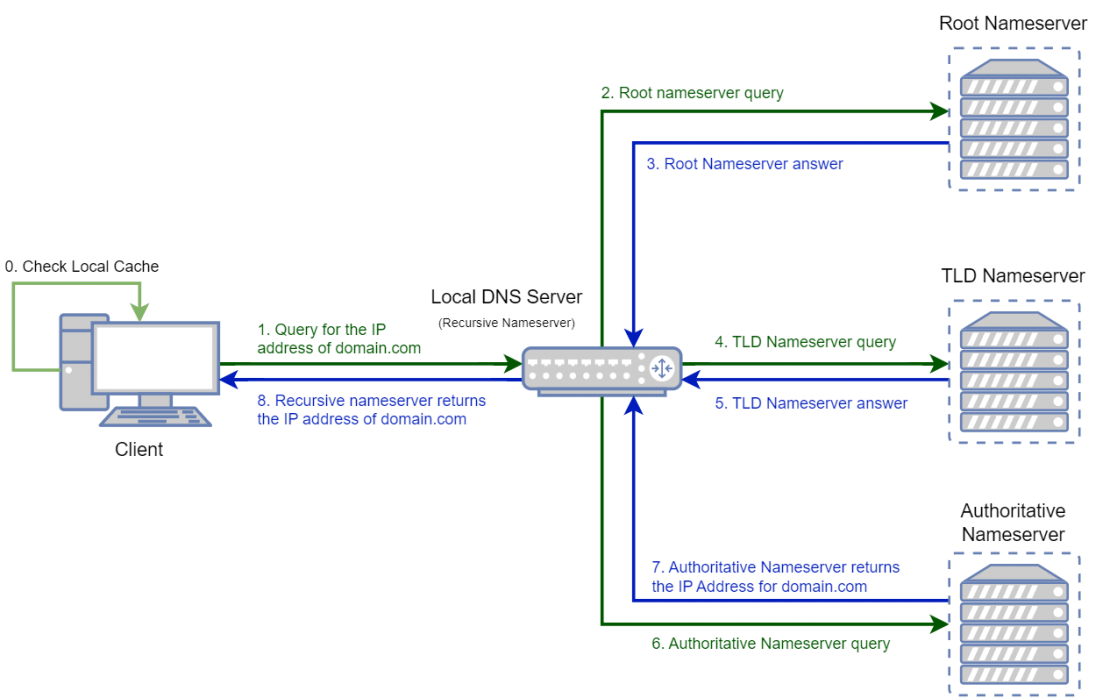
The entire process of loading a website goes through various servers, but the entire information is always held in your hosting server. So, if the servers along the way, or the main server, answer the request to load the page quickly, everything is fine. If the server stays silent or takes too long, the browser won’t wait forever. Instead, it cuts the line and shows the error.
This type of timeout belongs to the same family as other common HTTP errors. The difference is in the silence. A “404 Not Found” tells you the page doesn’t exist. A “403 Forbidden” says access is blocked. But a connection timed out doesn’t say yes or no. It just states that the request was ignored.
For a website owner, that silence is dangerous. Visitors assume something is broken, and they rarely bother to try again. So, the faster you figure out where the problem is, the faster you can solve it.
What Causes Connection Timed Out Error
A connection timed out error never comes out of thin air. Something in the chain between the browser and the server is slowing things down so much that the browser gives up waiting.
In our experience, there are a few common culprits that usually stay behind this error.
Slow or unstable internet
Sometimes the issue starts with the visitor. An unreliable connection is like trying to have a phone call in a tunnel. The signal drops, and the conversation cuts off before it even begins.
DNS problems
The Domain Name System (DNS) is what helps browsers find the right server. If DNS settings are wrong or the server itself is down, the request never reaches the destination. It’s like dialing the wrong number over and over.
Browser cache and outdated settings
Old cache files or broken cookies can confuse the browser. Instead of loading a fresh page, it keeps trying with a corrupted version, and the server doesn’t respond. Think of it as carrying an outdated map that no longer matches the streets.
Firewall or antivirus interference
Sometimes security software is too protective. A firewall or antivirus may mistake a safe website for a threat and block it. From the user’s perspective, this looks just like a connection timed out error.
Server overload or downtime
When too many people try to access a site at once, the hosting server can get overwhelmed. The result is either a timeout or even a more explicit 500 internal server error. It’s like walking into a restaurant so crowded that no waiter ever comes to your table.
Hosting misconfiguration
If the server itself is misconfigured, the response may never leave the backend. In some cases, this looks similar to an “err connection refused” message, but in timeouts, the browser just keeps waiting until it quits.
These causes may seem different, but they all have one thing in common: they stop your site from talking to your visitors. The good news is that most of them can be fixed with a few easy steps.
How a Connection Timed Out Error Affects SEO and Crawlability
A connection timed out error directly impacts site accessibility, which makes it more disruptive for SEO than many standard HTTP errors. Because the connection fails before content is delivered, search engines and users are effectively locked out.
Missed Crawl Opportunities
When search engine bots encounter connection timeouts, they cannot retrieve page content at all. This means updates, new pages, or critical changes may go undiscovered during scheduled crawls.
Reduced Crawl Frequency
Repeated timeouts signal that a site is slow or unreliable. In response, search engines may reduce crawl frequency to avoid wasting resources, which slows index updates and content discovery across the site.
Negative User Experience Signals
For users, connection timeouts often result in browser error pages or long loading delays. These experiences increase bounce rates and abandonment, reinforcing negative quality signals that can indirectly affect organic performance.
How to Diagnose Connection Timeouts Using Logs
Server logs are one of the most reliable ways to identify where and why a timeout occurs, especially when the issue is not consistently reproducible.
Access Logs vs Error Logs
Access logs show incoming requests and whether they were completed, while error logs capture failures, dropped connections, and blocked requests. Timeouts often appear as incomplete or missing responses in access logs and as explicit timeout or connection errors in error logs.
Timeout-Related Log Messages
Common indicators include connection reset messages, upstream timeouts, worker timeouts, or firewall-related blocks. These messages help pinpoint whether the request failed before reaching the application or during processing.
Identifying the Failing Layer
Logs reveal whether the timeout originates from the network layer, a firewall or security rule, or the application itself. This distinction is critical, as each cause requires a different fix and restarting the wrong component can mask the real problem.
Connection Timed Out Error Troubleshooting: Diagnostic Steps Before Fixes
Before attempting to fix a connection timed out error, it is important to identify where the connection is failing. Following a structured diagnostic sequence helps determine whether the issue is local, network-related, or server-side.
- Check local connectivity
Confirm that your internet connection is stable and that other websites load normally. If multiple sites fail to load, the issue is likely local rather than server-related. - Test DNS resolution
Verify that the domain resolves correctly using DNS lookup tools. Failed or slow resolution can prevent the browser from reaching the server even when it is online. - Check server uptime and resource usage
Ensure the server is running and not overloaded. High CPU, memory exhaustion, or unresponsive services can cause connections to time out. - Review firewall and security rules
Inspect firewalls, WAFs, and security plugins to confirm they are not blocking legitimate traffic or throttling connections unintentionally. - Inspect server logs
Review web server, application, and system logs to identify dropped connections, denied requests, or network-level errors.
How to Fix Connection Timed Out
WE’ve faced many of these problems in our day-to-day work, and we can confidently say that you don’t need a developer-level knowledge to fix them. It all comes down to a few easy steps.
Visitor-Level Checks for a Connection Timed Out Error (Limited Scope)
- Just try again: Sometimes the response just doesn’t come. So, hit F5 or the refresh button on your browser and try to load it again. More often than not, this will solve the problem and you will reach your destination.
- Check and restart your internet connection: If your internet doesn’t work properly, no complaint or support ticket can resolve your problem. So, before you reach out to the website owner, restart your router and give your internet connection a fresh start.
- Clear browser cache and cookies: Corrupted or outdated cache files confuse the browser. Wiping them out often restores access, similar to how cleaning your glasses clears the view. This trick works here just as it does when troubleshooting a 400 error code.
- Update or try another browser: Older versions of browsers may not handle certain web requests properly. Switching to a fresh browser session can instantly confirm if the problem lies with your setup.
- Disable antivirus or firewall temporarily: Security software sometimes mistakes safe sites for threats. If a timeout clears once you pause your antivirus, you’ve found the culprit. Just remember to turn protection back on afterward.
- Switch DNS servers: Default DNS servers provided by ISPs are often slow. Switching to faster alternatives like Google DNS or Cloudflare is like trading in an outdated paper map for a modern GPS.
Server-Side Fixes for a Connection Timed Out Error (Website Owners)
- Check hosting uptime and server health: Start by making sure your hosting provider isn’t experiencing downtime. If your server is overloaded or misconfigured, visitors will keep seeing connection timed out messages.
- Review firewall and security settings: A firewall that’s too strict can block legitimate requests. Adjusting rules ensures visitors can actually reach your site.
- Optimize your site’s performance: Heavy scripts, bloated plugins, or unoptimized databases slow down responses. Streamlining them gives your server more breathing room to answer requests.
- Increase PHP execution time or memory limit: If your website processes take too long, the server gives up before delivering a result. Extending PHP’s limits can keep pages from stalling.
- Upgrade your hosting plan if needed: Sometimes the simplest fix is growth. If your site has outgrown its current resources, upgrading to a stronger hosting package ensures it can handle more traffic without breaking. Login issues causing these kinds of slowdowns often overlap with what you’d see when learning how to fix 401 unauthorized error.
By applying these steps, you can usually resolve the problem quickly. But fixes alone aren’t enough. Keeping your site healthy long-term requires focusing on prevention.
Preventing Future ERR_CONNECTION_TIMED_OUT Errors?
As usual, we can’t just tell you how to fix the problem and let you deal with whatever the gods of the internet throw at you. Prevention is always better, and the only way to minimize the negative effects the Connection Timed Out error will have on your business. The truth is simple, the less your visitors see errors, the more they trust your site and the more confident Google becomes in ranking it higher. So, what can you do to prevent this issue?
First and foremost, prevention is about consistency and maintenance. Here’s what you should do:
- Monitor uptime and performance. Tools like uptime monitors are like security cameras for your website, giving you instant alerts when your site slows or goes down.
- Keep SSL certificates valid. Expired or misconfigured SSL often creates problems that feel like timeouts or even trigger a this site can’t provide a secure connection warning.
- Audit plugins, themes, and code. Lightweight, well-coded sites respond faster and prevent unnecessary delays.
- Choose reliable hosting. A strong foundation matters. Stable, scalable hosting ensures your server can handle both traffic spikes and everyday visitors without stalling.
For Users
Now, if you’re a visitor, you don’t have the same stipulations as the website owner. Still, it’s much better to try to fix the issue yourself rather than just giving up on every website that shows a ‘connection timed out’ message. The problem may be on your end, and, well, you can lose a lot of good deals simply because your DNS was configured poorly.
So, even though you have no obligation to do anything, it’s still wise to:
- Update your browser and operating system regularly. Just like servicing your car prevents sudden breakdowns, updates reduce the chance of errors sneaking in.
- Use reliable DNS servers. Switching to services like Google DNS or Cloudflare helps avoid slow or unresponsive connections.
- Clear cache and cookies now and then. Old data can cause problems if it no longer matches what’s on the live site.
The truth is, prevention saves more than time. It saves lost sales, lost trust, and lost rankings. With proactive steps, your website stays online, healthy, and ready for growth.
How Can Your Hosting Provider Help
Many site owners spend hours chasing small fixes for a connection timed out error, but the real difference often comes from what’s under the hood. This is where your hosting provider can be of great help or entirely mess up your efforts.
A reliable host makes sure your server responds quickly, stays online consistently, and isn’t brought down by a sudden spike in visitors. Without that foundation, even the best-optimized site can still frustrate users.
That’s where HostArmada steps in. With lightning-fast website loading speeds, a 99.9% uptime guarantee, and top-of-the-line security, it removes the conditions that trigger timeouts in the first place. And if anything does go wrong, our 24/7/365 support team is ready to resolve it before it hurts your traffic or reputation.
In the end, preventing common HTTP errors isn’t just about applying patches. It’s about building your site on stable ground. HostArmada’s hosting plans give you that stability, so your visitors stay engaged, your sales stay on track, and your website stays available when it matters most.
So, check out our hosting plans today and make connection errors a thing of the past.
FAQs
No. A connection timed out error occurs when a browser cannot establish a connection at all. A 504 Gateway Timeout occurs after a connection is made but the upstream server fails to respond in time.
Yes. Misconfigured firewalls, WAF rules, or security plugins can silently block or delay connections, resulting in timeouts without clear error messages.
Absolutely. Poorly resourced or overloaded hosting environments increase response delays and connection failures. Reliable hosting with proper scaling and monitoring significantly reduces timeout-related issues.
Not always. Local network problems or DNS failures can cause timeouts, but persistent errors across users usually indicate a server-side or infrastructure problem.
