

Development / Monday March 2, 2026
Top 8 Common WordPress Errors and How To Fix Them

If you’re dealing with WordPress errors like the White Screen of Death, database connection issues, login problems, or timeouts, this guide will show you exactly how to fix them step by step.
WordPress is one of the most powerful and user-friendly content management systems available, but even the most stable websites can run into technical issues. From plugin conflicts and memory limits to incorrect database credentials or update failures, errors can appear unexpectedly – and often at the worst possible time.
The good news? Most common WordPress errors are not catastrophic and can be resolved quickly once you understand what’s causing them. In this guide, we’ll break down the eight most common WordPress errors, explain why they happen, and walk you through practical solutions you can apply immediately.
White Screen of Death
This is one error no one wants to see. It’s hands down the most disturbing issue you may encounter. The White screen of death (WSoD) basically replaces your entire website with a blank page – a vast nothingness. There are no error messages, no notifications, nothing. Just a white screen telling you you are screwed.

Most often, WSoD means your website’s memory limit is exhausted by a script. Thus, your hosting provider either times out the script or, as a more radical solution, kills it altogether. That’s why you don’t get any message whatsoever. Sometimes, the problem might come from a poorly performing plugin. In rare cases, this may even be caused by a coding error in the theme itself.
The toughest thing about the WSoD error is that it can be caused by several factors, so the solutions are not as simple and straightforward as those for some other errors on our list. So, if you stumble upon this traitorous error, don’t despair. The fixes are quite easy. The hard part is determining what the problem is.
Solution
- Firstly, if you can access your dashboard, try deactivating all your plugins. If your website appears after this, it will look rather dull. Still, it would show that the problem lies in a malfunctioning plugin. Start activating the plugins one by one until you find the one causing the problem. Once you find it, you can replace it with an alternative, delete it altogether, or explore a solution within the WordPress community.
- If you can’t even reach the dashboard, it’s a good idea to check whether other websites on the same hosting account are operational. If not, then contact your hosting provider to find a solution. This may be a temporary problem, but nonetheless, informing the hosting provider that they have it is a great way to ensure the problem lies with them.
- Sometimes, the problem is that you’ve reached your memory limit. Well, the obvious solution is to increase your PHP memory availability. This will allow the heavy script to get more memory and finish the job.
- If you suspect the problem is within your theme, simply activate the WP Default Theme. Before you start changing anything, though, creating a backup is a good idea, just in case the problem is elsewhere. Connect to your website via FTP client and go to “wp-content/themes/ folder. There, you will find all installed themes on your website. Select your current WordPress theme with a right-click and download it to your computer. Only after that can you delete it from your website. This way, WordPress will revert to the default theme.
- Sometimes, the solution to the WSoD is as easy as clearing the cache.
Locked Out of WP-Admin
WordPress dashboard is, without a doubt, the single most important asset of your website. This is the main panel where you can add, change, or delete content, features, or copy from your website. Needless to say, constant access to the dashboard is instrumental to running an operational WordPress website.
However, there are some issues that may lead to getting locked out of your WordPress admin dashboard. Now, don’t panic. This is troublesome indeed, but as usual, there is a solution.

But why would WordPress lock you out of your own website? Well, there are various reasons. You may have unintentionally messed something up if you recently touched the website’s code. Some plugins may also be behind this issue, as well as a theme update. If the problem occurred after a recent change, you would have a pretty good idea of where to start looking.
Solutions
- The most common reason for being locked out of your dashboard is a forgotten password. The simplest solution is to follow the “Lost your password” instructions and regain access that way.
- Another reason to be locked out is when you reach your login limit. By default, you have countless tries to enter the correct password. However, any IT specialist will tell you this is an invitation for hackers to simply try hundreds of thousands of combinations until they crack your website. Thus, limiting the number of attempts is a good idea. The problem is when you reach this limit. Still, that’s not the end of the world. The easiest way to regain access is to use an FTP client. Access your website’s data via the FTP client, then go to /wp-content/plugins/. There, you simply must delete the limit-login attempts plugin, and you are ready to go. Just remember to reinstall it once you’ve gained access.
- The worst reason for being locked out of your dashboard is if your website is hacked. Then, the hacker might have deleted your admin privileges. Don’t worry, though. There is still a way to recover your website. However, this is definitely not something you should do alone, as it needs vast knowledge. So, it’s best to find a professional to do it for you.
Trouble With Database Connection
As you can imagine, your website is nothing more than a sequence of files stored in a database. To access your website, you must maintain a connection to the database at all times. Naturally, sometimes your website loses that connection, and it’s most often due to a single file on your website – wp-config.php. This is the file that contains all the information about the website’s database. Thus, if there is a problem with the database connection, this file is most likely the perpetrator.
Solution
As you can imagine, the solution to this problem lies in precisely this file. First, you must find it within your website’s files. The wp-config.php file usually lies in the root folder. When you find it, right-click on it and select View/Edit. Now you want to check whether all credentials are in order. This includes the database name, the MySQL database username, the password, and the hostname. These are the lines you should be looking after.
/** The name of the database for WordPress */

define('DB_NAME', 'database_name_here');
/** MySQL database username */
define(‘DB_USER’, ‘username_here’);
/** MySQL database password */
define(‘DB_PASSWORD’, ‘password_here’);
/** MySQL hostname */
define(‘DB_HOST’, ‘localhost’);
If the credentials are incorrect, fixing them should resolve the problem.
However, if the problem is still at large, you will need to add an additional line to your wp-config.php file:
define('WP_ALLOW_REPAIR', true).
Make sure to place it separately within the file and to designate it properly. Once you’ve added the line, go to http://www.yoursite.com/wp-admin/maint/repair.php. There, you will be able to repair your database. Note that any user will be able to get to this link, so once you’ve finished fixing the problem, don’t forget to delete the added line (1 define(‘WP_ALLOW_REPAIR’, true))
Failed Auto-Update
Now, this is one problem that’s definitely not a huge deal, but it does cause inconvenience. You must keep your WordPress up to date, and if your Auto-update is not working, you will have to do it manually. This is tedious, to say the least, and may pose some serious security issues as well. You can check if there is such an error in the update menu on your dashboard, right under Current Version.
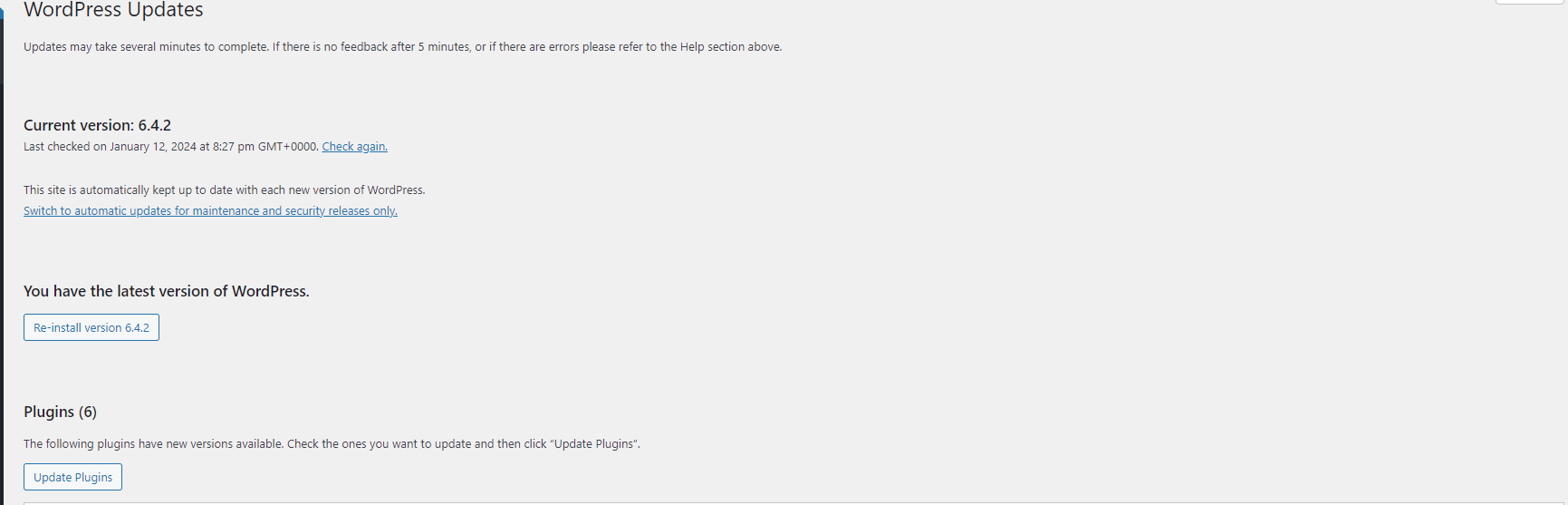
Various reasons may be behind this problem. Losing an internet connection during the update is the most common one. Still, the problem may occur due to a loss of connection to the WP main files or incorrect permissions.
Solutions
If this is a one-time occurrence, you can simply do it manually. Download the WordPress zip file, extract it, and prepare for installation. This includes deactivating all plugins, as they may cause an issue during the installation process. Also, you may want to delete the old wp-admin directories from your web host and the wp-includes directory. The new upload will replace them.
Then simply transfer the new files into your wp-content folder and overwrite the old ones. It’s important not to delete any files in that folder or the folder itself.
Finally, upload all loose files from the updated version’s root directory to your old root directory. Do not delete anything in the root directory, and avoid overwriting any customization files or plugins unless they’re not crucial.
Then, delete the .maintenance file from your WordPress directory by using FTP.
Next, you must update your installation. You simply must visit your admin page and log in. WordPress will provide a link to the upgrade.php if the update is required. All you need to do is follow the instructions.
After all of this is done, reactivate your plugins and clear the cache.
Syntax Error
Syntax errors typically happen after you’ve made some changes to your website. For example, you may have added custom code to your website or installed a new plugin or theme. The problem occurs when a syntax error is introduced into the website’s code.
The syntax error is courteous enough to show you precisely where the error is, or at least show you the line that’s causing the issue. Naturally, the solution is quite simple.
Solution
To fix the problem, all you need to do is fix the error in the shown line. If someone else did the changes and you’re uncomfortable messing around with your website’s code, reverting to a backup is the easiest solution.
If a plugin or theme is causing the problem, deleting it will resolve it immediately. Or you can use an SFTP to find the problematic line and fix it yourself. It’s up to you.
HTTP Image Upload Errors
This is one problem that can really be nerve-wracking. You’re just about to post your new blog post and can’t upload your image. Now, the size would hardly be a problem if you are uploading an image. WordPress allows you to upload files up to 512 MB. The most common issues are incorrect file permissions or plugin interference.

Solutions
- Before you jump into your FTP of choice and start granting permissions, you might want to clear your browser cache to see if that wasn’t the problem in the first place. Sometimes the browser cache interferes with the upload process, and clearing it is as easy as that.
- Try renaming the file. If the file name contains any special characters, the upload process will be impossible. So, remove all punctuation and special characters from the file name.
- Try uploading from a different browser. This way, you will see whether the problem is with your browser or with your website.
- Deactivating plugins. Yes, unfortunately, plugins, as third-party software, often lead to problems with your website. Still, a simple deactivation of recently installed or updated plugins may be the solution. If this solves the issue, inform the developer of the problem so they can fix it.
- Check whether the memory limit has not been exhausted. If this is the problem, you might want to increase your memory limit.
- Finally, check if the file permissions are correct. Go to your /wp-content/ folder using your FTP client of choice, then find the uploads folder. Right-click on it and select “File Permissions”. Next, go to the Numeric value box and enter 744 or 755. If neither works, try 644. Then, check the “recurse into subdirectories box and select “Apply to directories only. ” Finally, press OK, and this should solve your problem.
Fixing WordPress Keeps Logging Out Problem
This is definitely the most frustrating issue you can run into, especially when you haven’t saved your work and are in the middle of configuring vital settings. The worst part is that this issue is caused by negligence and oversight on the part of the person configuring the website.
The issue is often caused by entering a different URL in the site address and WordPress address fields in your website’s settings. Every time you log in to your website, WordPress will set a cookie in your browser that will authenticate your login session. The cookie is set for the WordPress address stored in your settings menu. So, if there is a difference between the site address and the WordPress address, the login session can’t be authenticated.
The worst part is that in 99% of cases, the problem is that you added www in one of the boxes. For example:
WordPress Address (URL): https://yourwebsite.com
Site Address (URL): https://www.yourwebsite.com
Frustrating indeed, but easily solvable.

Solution
The solution is as simple as going to your dashboard –> settings–> general, and making the WordPress address and the Site address the same. Don’t forget to hit “save changes” at the end.
Connection Timed Out
Finally, we have the “connection timed out” error. Usually, this issue occurs when the server gives up on recovering your website’s data. Naturally, this happens for a variety of reasons. The most common is within your server. It simply lacks the resources to load your website. This can be caused by reaching your bandwidth limit, by too many users trying to enter simultaneously, or by your visitor limit, set by some hosting companies. Moreover, if you are using shared hosting, another website could be hogging all the server’s resources.
Solution
- One solution is to downsize your website. Return to the default theme, reduce the number of plugins, and optimize your use of images and videos. This will reduce your resource needs.
- Upgrade your hosting plan. If shared hosting is no longer enough, you must go a step further. Unfortunately, though, dedicated server hosting plans can cost significantly more than what you are used to. Still, if the website earns money, each minute down is a huge loss.
- Finally, you can simply join HostArmada and enjoy our cloud-based hosting infrastructure. This allows us to handle occasional influxes and keep all our customers online at all times. We even have a 99.9% uptime guarantee policy, affecting shared hosting customers.
So, if you want an easy and cost-efficient solution to the connection time problem, all you need to do is check our plans and choose the best fit for your needs. On top of that, you will receive a lightning-fast loading time and top-notch security.
Conclusion
Knowing how to deal with these issues and fix WordPress errors will help you mitigate sudden problems with your WordPress website without needing a professional. Still, if the issues prove more severe, we highly recommend seeking help from someone experienced with WordPress. Those issues may be easy to solve, but touching your website’s database is no joke, and it can destroy your entire work if not done with precision. So, if you think you are not ready to solve those issues on your own, there is no shame in simply asking a professional for help. It will certainly save you a lot of time and trouble.
FAQs
The most common WordPress error is the White Screen of Death (WSoD). It usually happens due to exhausted PHP memory limits, plugin conflicts, or theme-related issues. In most cases, disabling plugins or increasing the memory limit resolves the problem.
This error typically appears when WordPress cannot communicate with your database. The most common causes are: Incorrect database credentials in the wp-config.php file, acorrupted database, and a downed database server. Checking and correcting the database name, username, password, and host usually fixes the issue.
WordPress logs you out repeatedly when your WordPress Address (URL) and Site Address (URL) don’t match exactly (for example, one uses www and the other does not). Fix it by going to: Dashboard → Settings → General and making sure both URLs are identical.
