

Errors / Friday May 1, 2026
Network Timeout: How to Solve Client-Side Issues
When a website times out, most site owners immediately think the server is down. The page keeps loading, nothing happens, and frustration builds fast. Hosting becomes the obvious suspect.
In reality, a timeout does not automatically mean your hosting failed. It only means the browser did not receive a response within the expected time window. The request may never have reached the server at all. It could have stalled inside the browser, the local network, or during DNS resolution. If you start adjusting server settings before checking those layers, you risk fixing the wrong problem.
A proper network timeout fix begins with understanding how a request moves from your device to the website and where it can break along the way. Once that path becomes clear, the error message stops feeling random and starts revealing patterns.
How Browsers Interpret Timeout Errors
A browser timeout is not a failure message. It is a timer expiring.
When you see a browser timeout error, the browser is simply reporting that it waited for a response and did not receive one within the expected window. It does not know whether the server crashed, whether the DNS lookup stalled, or whether your local network dropped packets. It only knows that the response took too long.

Think of it like making a phone call and hearing the line ring without anyone answering. You do not immediately know whether the person is ignoring the call, stuck in traffic, or out of signal. All you know is that the call did not connect in time. A timeout works the same way. The browser sends a request and waits. If the waiting period exceeds its limit, it stops the attempt and displays an error.
Different browsers may handle this waiting period slightly differently, depending on the web browser you use, connection limits, and internal networking behavior. The core principle remains the same. The timeout reflects delay, not diagnosis.
Understanding this distinction changes how you approach a network timeout fix. Instead of assuming infrastructure failure, you start asking where the delay began.
Where a Timeout Actually Happens
When a website loads instantly on mobile data but refuses to open on office Wi-Fi, the pattern already tells you something. The server did not suddenly fail for one network and not the other. The delay started somewhere along the path between the device and the website.
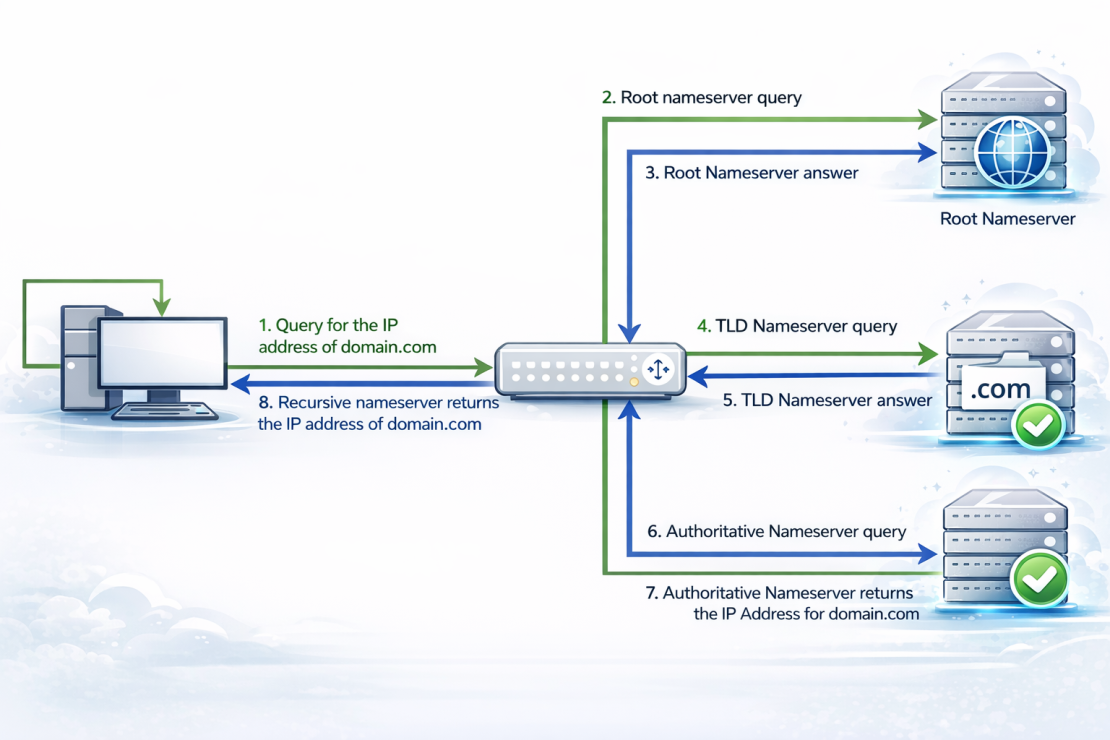
A request does not travel in a straight line. It moves through layers. First, your device sends the request through the browser. Then it passes through your local network, your router, and your internet service provider. After that, it depends on DNS resolution to translate the domain name into an IP address. Only then does it reach the server and the hosting stack behind it. A connection timed out error can appear at any point along that route, even though the message looks identical.
Think of it like sending a package. If the parcel does not arrive, the issue could be the address label, the courier route, a sorting center delay, or the final warehouse. Blaming the warehouse without checking the route misses half the journey.
A proper network timeout fix depends on understanding this layered path. Once you recognize where the request travels, you stop treating timeouts as mysterious failures and start narrowing down where the interruption actually occurred.
Browser-Level Causes of Timeout Errors
Not every timeout begins on the network. Some never leave the browser.
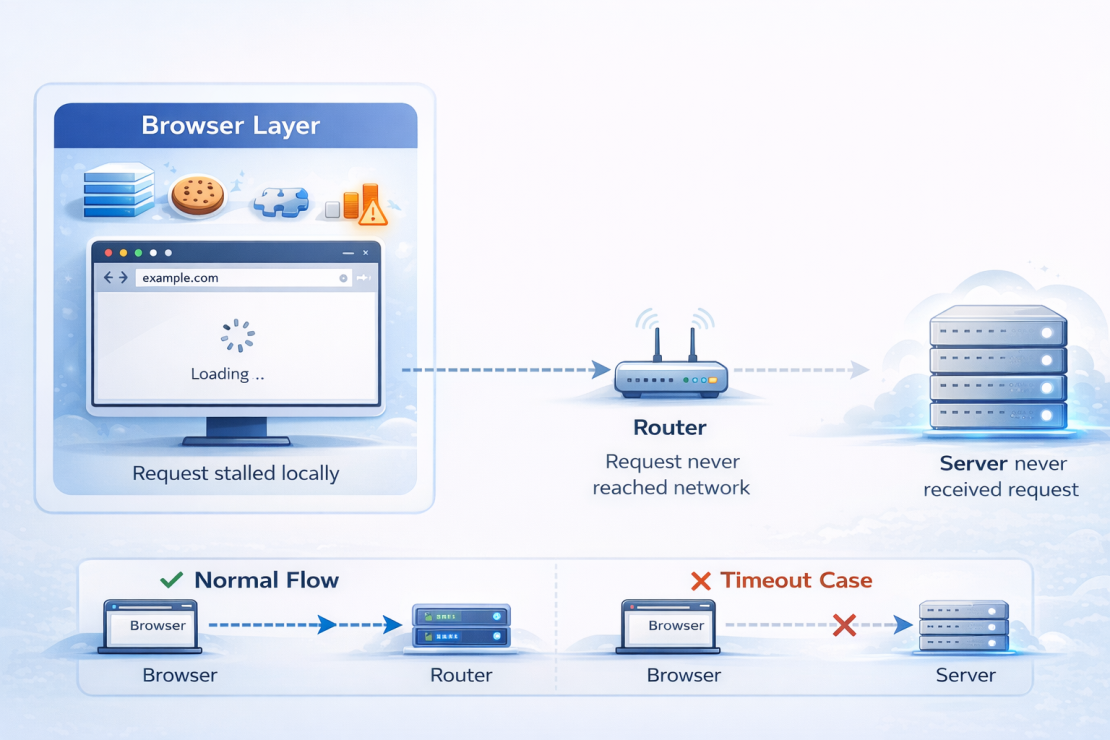
A browser timeout error can originate before the request even reaches your router. Browsers manage cache, cookies, extensions, connection limits, and background scripts. If one of these layers stalls or conflicts, the request may fail locally. The server never receives it, yet the error message looks identical to a remote failure. Recognizing this distinction is a key step toward a reliable network timeout fix without touching DNS or hosting settings.
Corrupted Cache, Cookies, and Stored Session Data
Browsers store resources to speed up repeat visits. When cached files become outdated or inconsistent, the browser may request assets that no longer match the live version of the site. It is similar to using an outdated map that still shows roads that were renamed. The route looks correct, but you never reach the right address. Clearing cache and cookies resets this layer and often restores normal request flow.
Extension Conflicts and Script Blocking
Security extensions, ad blockers, and privacy tools actively filter traffic. While they protect users, they can also interrupt legitimate scripts or background requests. Testing the site in Incognito mode disables most extensions and quickly reveals whether filtering is the cause. Many cases categorized as common HTTP and browser errors stem from aggressive blocking rules rather than server instability.
Browser Networking Limits and Request Queues
Browsers limit the number of simultaneous connections they open to a domain. If several heavy assets are loaded at once, new requests wait in a queue. When the waiting time exceeds the browser’s threshold, it reports a timeout. Developer tools make these queued requests visible and help distinguish between local congestion and external delay.
Local Network and Device-Level Failures
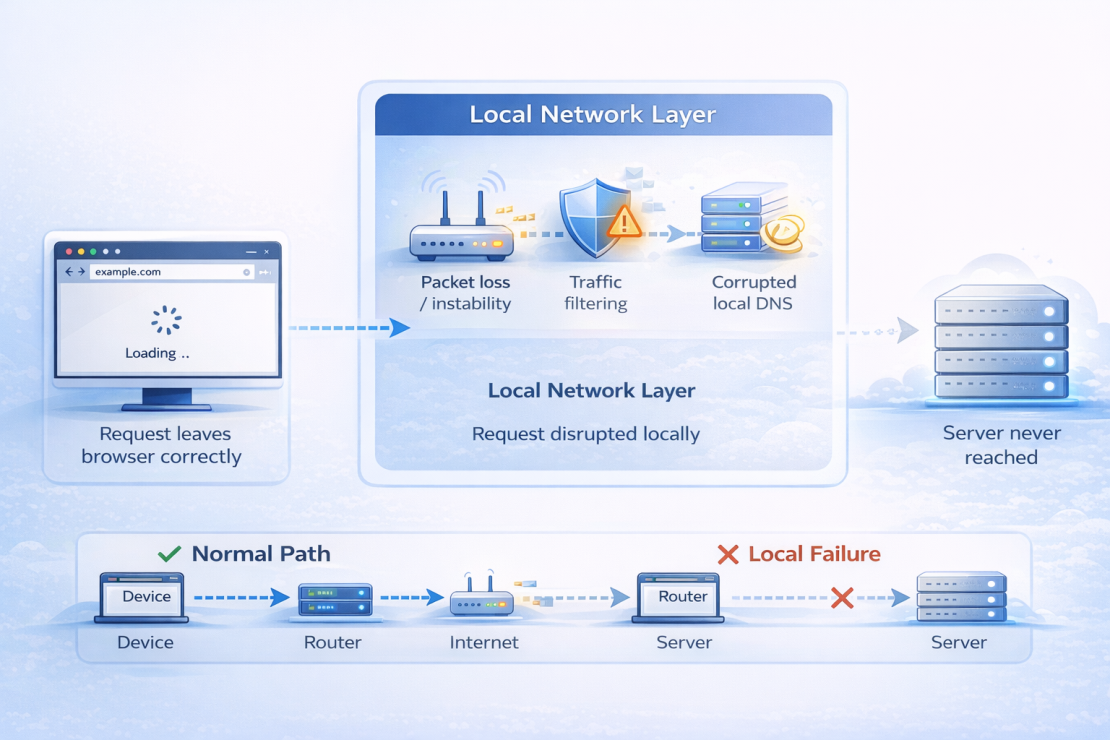
When we troubleshoot timeout complaints internally, we often resolve them without touching the server at all. The request leaves the browser correctly, but something inside the local network blocks or delays it before it reaches the wider internet.
Your device connects to the internet through layers of hardware and software that operate silently in the background. If any of them become unstable, the request may stall long enough to trigger a timeout. Understanding this layer is essential for a proper network timeout fix, because the issue may sit just a few feet away from you.
Router Instability and Packet Loss
Routers handle every outgoing and incoming request from your network. Over time, memory saturation, overheating, or outdated firmware can reduce their stability. When this happens, packets may drop or delay unpredictably. It is similar to traffic building up at a highway exit. The road still exists, but cars slow down or stop before reaching the main route. Restarting the router or updating firmware often restores a consistent flow and removes intermittent timeouts.
Firewall, VPN, and Security Interference
Firewalls, VPNs, and endpoint security tools inspect traffic before allowing it through. In corporate or heavily secured environments, strict filtering rules may block certain ports or outbound requests. The connection appears to hang, even though the server is fully operational. Temporarily disabling a VPN or testing from another network quickly reveals whether filtering causes the delay.
OS-Level DNS Cache Corruption
Your operating system stores DNS results locally to speed up repeat visits. If that cache becomes outdated or corrupted, the device may attempt to connect using incorrect resolution data. Running a basic DNS troubleshooting, such as flushing the local DNS cache, often clears stale entries and restores normal resolution behavior. This step ensures the request reaches the correct destination before you look elsewhere.
DNS Resolution and External Routing Delays
DNS works like a contact list for the internet. When you type a domain name, your device looks up the correct IP address before it can establish a connection. If that lookup fails or slows down, the request never reaches the server, even though the website itself may be fully operational.
To understand why this matters, it helps to know what DNS actually does. It translates human-readable domain names into machine-readable IP addresses. When that translation stalls, the browser keeps waiting. After a certain threshold, it reports a timeout. At that point, the issue may not be hosting, server load, or application logic. The delay occurred before the connection even began.
DNS Lookup Delays and Resolver Issues
Your device relies on a DNS resolver, often provided by your ISP or configured manually. If that resolver responds slowly or inconsistently, the connection appears unstable. A simple DNS troubleshooting, such as switching to a public resolver or verifying response times, often reveals whether resolution latency is the bottleneck. Including this step early in your network timeout fix process prevents unnecessary server-side adjustments.
Incorrect Nameserver Configuration
If nameservers are misconfigured or recently changed, the domain may point to outdated or incomplete records. Propagation delays can also create temporary mismatches between resolvers. In these cases, some users access the site normally while others encounter timeouts. Running a structured DNS troubleshooting confirms whether the domain resolves consistently across different networks. Addressing configuration errors at this stage strengthens your overall network timeout fix strategy.
ISP-Level Routing Delays
Even when DNS resolves correctly, routing between your ISP and the hosting provider can introduce latency. Congestion, filtering, or regional network instability may slow down packet delivery long enough to trigger a timeout. Identifying this pattern shifts attention away from the server and toward the connection path between networks.
A Structured Network Timeout Fix Framework
The fastest way to resolve a timeout is to isolate the layer where the delay begins. Random changes create more confusion than clarity. A structured approach narrows the issue quickly and prevents unnecessary server adjustments.
Diagnosing a timeout is similar to checking why a car will not start. You test the battery before replacing the engine. The same logic applies to a reliable network timeout fix.
Follow this order:
- Confirm reproducibility
Refresh the page and verify whether the issue persists or appears intermittently. - Test a different browser
If the site loads elsewhere, the delay likely originates inside the first browser. - Test a different network
Switch to mobile data or another Wi-Fi connection to rule out local routing instability. - Flush the local DNS cache
Clear stored resolution data to eliminate corrupted entries as part of your network timeout fix process. - Run a ping test
Check whether the domain responds to basic connectivity requests from your device. - Run traceroute
Identify where along the path the packets slow down or stop entirely. - Use an external uptime checker
Confirm whether the site responds normally from other geographic locations.
Executing these steps in sequence keeps troubleshooting focused. Each result removes one layer of uncertainty and moves you closer to a definitive network timeout fix instead of speculation.
When the Problem Is No Longer Client-Side
The more layers you eliminate on the client side, the more likely the issue lives elsewhere. Once the browser, local network, and DNS resolution behave consistently, continuing to adjust them rarely produces different results.
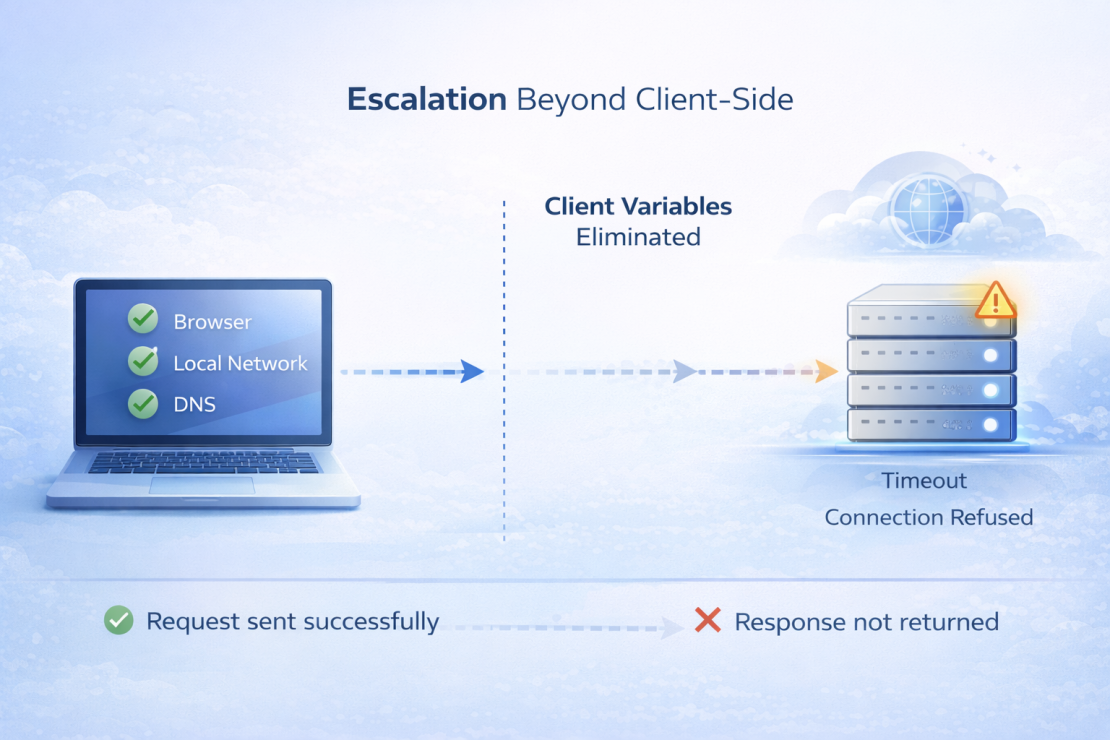
At this point, patterns start to matter. If multiple users across different networks report the same delay, the probability shifts away from local causes. If external uptime tools fail simultaneously, the interruption likely occurs beyond the client path. A repeated browser timeout error under these conditions signals that the request travels correctly but fails to receive a timely response from the destination.
Another indicator appears when the error message changes. A timeout reflects waiting without a response. An err connection refused message indicates the destination actively rejected the request. That distinction matters. A refusal implies the server responded, but the service did not accept the connection.
Think of client-side troubleshooting like checking the electrical breakers in your home. Once you confirm they function properly, continuing to flip switches does not restore power if the outage originates outside the building.
Recognizing this threshold protects your network timeout fix strategy from drifting into guesswork. Once client and network variables are ruled out, escalation becomes a logical step rather than a reactive one.
Control the Connection Before Blaming the Server
Most timeout complaints begin with assumptions, not diagnostics. The page does not load, frustration rises, and the server becomes the immediate suspect. Yet in many cases, the interruption never leaves the browser, the local network, or the DNS layer.
Once you approach the problem methodically, timeouts stop feeling unpredictable. Start by confirming the browser behaves correctly. Then check whether the local network remains stable under repeated requests. A quick DNS validation ensures the domain resolves consistently. When each layer responds as expected, escalation becomes logical rather than reactive. That structure turns a scattered reaction into a controlled network timeout fix process.
Infrastructure still plays a decisive role. Even when the issue moves beyond the client side, stability depends on routing consistency, performance tuning, and uptime guarantees. At HostArmada, we build our cloud environment to minimize hidden bottlenecks, monitor network performance proactively, and maintain a 99.9% uptime guarantee. That foundation makes isolating issues easier because the infrastructure layer remains predictable and transparent.
When the connection path is clear and the hosting environment remains stable, timeout errors become exceptions rather than routine disruptions. If you want an environment designed to reduce uncertainty and simplify diagnostics, explore our hosting plans and choose the setup that fits your growth without introducing avoidable instability.
