

Errors / Monday May 11, 2026
How to Diagnose and Fix PHP Timeout Issues in WordPress
You update a plugin, start a backup, or import a large file, and your WordPress site suddenly freezes. The page spins for a while, then ends in a timeout. It feels like a connection problem, so you refresh, try again, and hope it works the second time.
In many cases, the issue has nothing to do with connectivity. A PHP timeout fix addresses something deeper inside the server. PHP runs the code that powers WordPress, and it operates within strict execution and memory limits. When a task needs more time or more resources than the server allows, PHP stops the script before it can finish.
Think of it as a built-in safety cutoff. The server still works, but the process is interrupted midway because it exceeded its budget. Understanding how those limits work makes troubleshooting feel more like a step-by-step guide, rather than a panic-infused frenzy. So, let’s discuss what a PHP timeout is, what resource limits trigger WordPress timeouts, and how to apply a PHP timeout fix safely.
How PHP Executes a WordPress Request
A PHP timeout is not a broken connection. It is the server deliberately stopping a script that exceeded its allowed execution time or resource budget. The request reaches the server, PHP begins processing it, and then the process gets terminated before it can return a full response.
Every WordPress page follows a predictable lifecycle. The browser sends a request. The server hands that request to PHP. PHP loads WordPress core files, activates the theme, runs plugins, and executes database queries. Only after all of that finishes does the server send the completed response back to the browser. If any part of that chain takes too long, the script can hit its limit and stop.
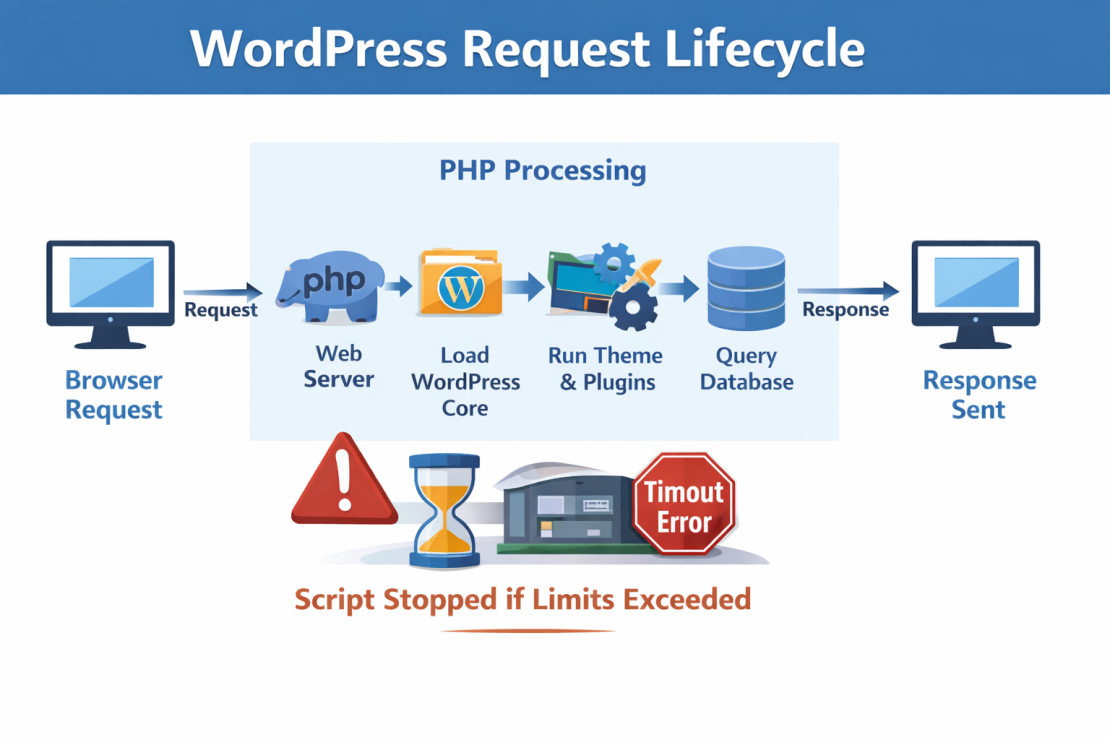
Think of PHP as a worker assigned a task with a strict stopwatch running. The worker can use only a fixed amount of time and memory for each request. If the task finishes within that budget, everything loads normally. If the task runs over, the system cuts it off mid-process. From the outside, this often looks like a broader connection-timed-out error, even though the failure occurred within the execution layer.
Understanding this lifecycle makes a PHP timeout fix far more precise. Instead of guessing at network issues or browser settings, you focus on how the server allocates time and resources to each WordPress request.
Why PHP Timeout Limits Exist in the First Place
Timeout limits protect your server long before they frustrate you. PHP does not stop execution randomly. It enforces boundaries so that a single request cannot monopolize system resources and slow down other sites sharing the environment.
Every server operates on finite resources. CPU time, memory, and input processing capacity must be distributed fairly. PHP enforces that fairness through configuration directives such as:
- max_execution_time
- memory_limit
- max_input_time
- post_max_size
Think of it like a shared kitchen in a restaurant. Each chef receives a station and a time window to prepare a dish. If one chef blocks the stove for too long, the entire service slows down. The kitchen manager steps in and clears the station. PHP acts as that manager. When a script exceeds its allowed time or memory, it terminates the process to preserve stability.

This becomes very real inside WordPress. A large WooCommerce product import, a backup plugin compressing thousands of files, or a theme performing heavy database queries can push past the default WP memory limit or execution time. When that happens, the process stops mid-task. Many site owners attempt a PHP timeout fix by rushing to increase max execution time without understanding why the limit exists in the first place.
Recognizing these limits as protection mechanisms changes your approach. Instead of blindly disabling safeguards, you begin strategically adjusting resources.
Real WordPress Actions That Trigger PHP Timeouts
Over time, patterns start repeating. A large import freezes at 72 percent. A backup stops halfway through compression. A media library regeneration spins without finishing. These failures rarely happen at random. They usually signal that a script hit a resource ceiling.
Among the most common triggers of PHP timeout are:
- Bulk product imports
Processing thousands of rows forces PHP to execute long database operations in a single request.
- Full-site backups
File scanning and compression push both execution time and memory consumption upward.
- Large media uploads
Image resizing and thumbnail generation increase memory usage fast.
- Theme demo installs
Massive content injection stresses both time and input processing limits.
- Background cron jobs from heavy plugins
Scheduled tasks quietly accumulate load until they exceed the WP memory limit.
We have seen how a few thousand WooCommerce products keep failing at the same point over and over. Most website owners’ first instinct is to apply a PHP timeout fix by simply increasing the max execution time. While this can partially help, memory consumption remains the real bottleneck that has to be addressed. Eventually, the script stops anyway, as the resources are exhausted entirely.
It’s much like loading luggage into a cargo plane. The boarding window can be extended, but if the cargo hold fills up, loading stops anyway. The better solution is to optimize the workload and run a more efficient runtime. Choosing the best PHP version for WordPress improves execution efficiency and reduces resource strain without exceeding limits.
Of course, identifying the triggering action will help you narrow down the PHP timeout fix. So, it’s wise to know how to diagnose the source of the problem.
How to Diagnose Which Limit Is Failing
Raising limits without checking the logs creates new problems instead of solving the original one. A precise PHP timeout fix starts with evidence. WordPress and your hosting environment record exactly why a script stopped. You only need to look in the right place.
When a timeout occurs, the server usually logs a specific failure. Inside cPanel error logs or the WordPress debug log, the message reveals which resource hit its ceiling. Instead of guessing whether to increase max execution time or raise the WP memory limit, you can match the symptom to the limit directly.
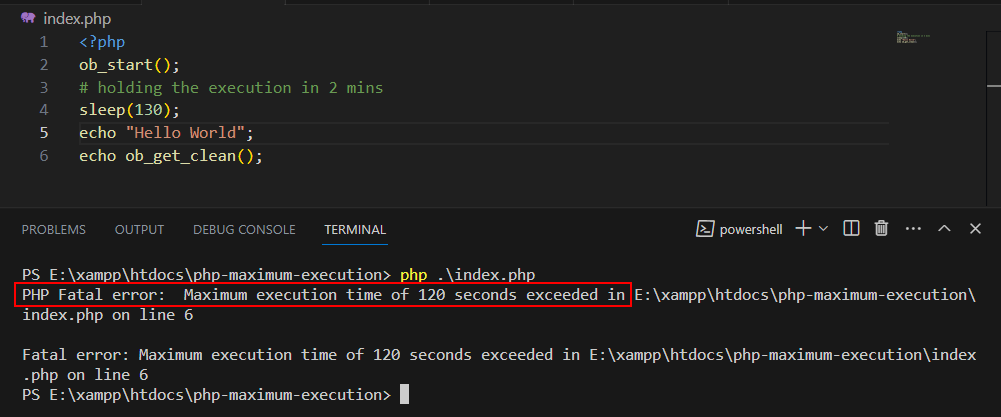
Common messages include:
- Maximum execution time of 30 seconds exceeded
PHP stopped the script because it ran longer than allowed. - Allowed memory size exhausted
The script consumed more memory than the configured WP memory limit. - 500 Internal Server Error during heavy processing
Often tied to resource exhaustion mid-task. - Script timed out before returning response
The process did not complete within its execution window.
Diagnosis replaces assumption with clarity. Once you know which limit failed, the correction becomes deliberate rather than experimental.
How to Check Error Logs in cPanel
Most hosting control panels include an error log section that displays recent server-level failures. Inside cPanel, the Errors tool shows the latest entries tied to your account. You do not need to understand every line. Focus on timestamps that match the failed action.
If you run a backup at 14:22 and see a “Maximum execution time exceeded” entry at 14:22, you found your culprit. Matching the event to the log creates confidence. Instead of reacting blindly, you now have direction for your PHP timeout fix.
How to Enable WordPress Debug Mode Safely
When server logs are unclear, WordPress can reveal more. Inside the wp-config.php file, debug mode allows WordPress to log PHP errors into a file within the wp-content folder. It records detailed failure messages without displaying them publicly.
Enable it temporarily while reproducing the issue. Then inspect the generated debug.log file for memory exhaustion or execution limit messages. Turn debug mode off afterward. Leaving it active in production environments can expose sensitive details and affect performance.
Clear visibility makes configuration adjustments intentional.
How to Apply a PHP Timeout Fix Without Breaking Your Site
Raising PHP limits works like adjusting a thermostat. If the room feels cold, you increase the temperature slightly and observe. You do not push it to the maximum and walk away. A controlled PHP timeout fix follows the same principle. Small, measured adjustments protect stability while solving the bottleneck.
Adjust Limits Through Your Hosting Control Panel First
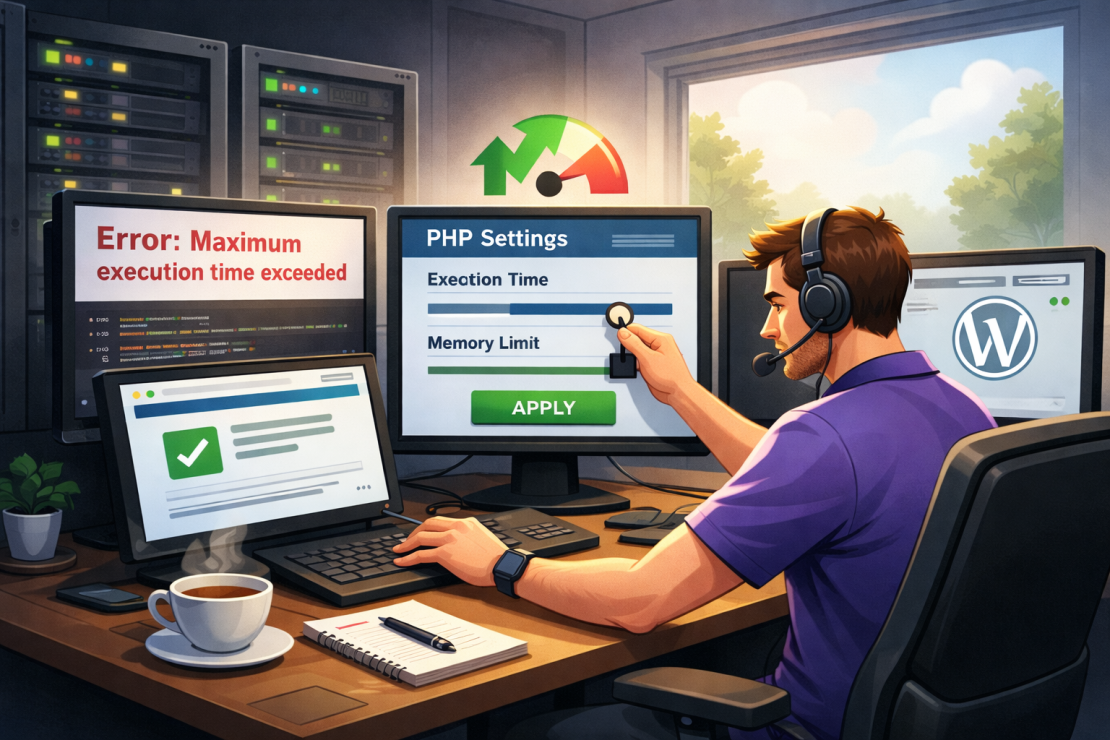
Your hosting control panel is usually the safest starting point. It applies changes cleanly without modifying core files. If your provider allows you to increase max execution time or memory from the dashboard, begin there.
When we troubleshoot these cases, we typically raise execution time by 30 to 60 seconds and test the exact task that failed. If it completes successfully, we stop. Jumping straight to several minutes may hide inefficient scripts and slow down the server for other processes.
Modify wp-config.php for WordPress-Level Control
If the control panel does not expose memory settings clearly, WordPress allows you to adjust allocation inside wp-config.php. This approach targets the application layer instead of the full server environment.
You should only raise limits after logs confirm exhaustion. Increasing memory without evidence can mask inefficient plugins or poorly optimized database queries. We treat this file as an application-level adjustment, not a permanent performance solution.
Use .htaccess Only When Your Environment Supports It
Some servers respect execution directives inside .htaccess. Others ignore them entirely. That inconsistency makes it an unreliable first choice.
Before applying changes here, confirm that your environment supports those directives. Otherwise, you may believe you increased a limit while the server continues to enforce the default configuration.
Change php.ini Carefully and Incrementally
php.ini controls default PHP behavior at the server level. Changes here can affect multiple applications running on the same environment. For that reason, you should treat it as the final layer of escalation.
We rarely move directly to extreme values. Instead, we increase limits gradually and retest. If the process still fails after reasonable adjustments, the issue may not be configuration at all.
Client-side changes will not influence this layer. Clearing cache or switching browsers addresses connectivity, not execution. That is why a network timeout fix will not resolve server-side script termination.
When Raising Limits Won’t Solve the Problem
You can increase execution time and still watch the process fail at the same point. Higher limits do not automatically mean better stability. A PHP timeout fix only works when the configuration is the real bottleneck. If the underlying issue sits elsewhere, larger numbers simply delay the inevitable.
We’ve seen environments running with several minutes of execution time still terminate mid-task. The reason was not the clock. The script itself consumed resources inefficiently. Raising limits in that situation resembles adding a bigger fuel tank to a car with a leaking engine. It may travel farther, but the core problem remains.
Common deeper causes include:
- Heavy or poorly optimized plugins
A plugin stuck in inefficient loops or complex queries can trigger recurring failures. In those cases, the real issue aligns more closely with a WP plugin timeout scenario than a configuration ceiling. - DNS routing delays or misconfigurations
If requests stall before reaching the application layer, execution limits are irrelevant. That type of issue falls under a DNS fix timeout. - Server overload or shared resource strain
When CPU and memory are already under pressure, even moderate tasks can fail. This pattern resembles broader hosting timeout issues.
Recognizing these boundaries protects you from endless escalation. If increasing limits produces no measurable improvement, step back and examine the workload itself. Configuration is powerful, but it cannot compensate for structural inefficiency or infrastructure strain.
Infrastructure Determines Stability
When execution limits keep failing despite careful adjustments, the environment itself may be the constraint. Configuration can stretch capacity, but it cannot create resources that are not available. A PHP timeout fix works best inside an infrastructure that provides consistent CPU access, memory isolation, and predictable performance under load.
Shared environments often distribute resources across many accounts. If neighboring workloads spike, your processes compete for time and memory. That competition increases the chance of script termination during imports, backups, or heavy queries. A cloud-based infrastructure reduces that volatility by isolating workloads and maintaining steadier allocation.
We’ve seen sites stabilize immediately after moving to environments with proper resource distribution. The code remained unchanged. The configuration remained conservative. The difference came from the underlying architecture.
HostArmada operates on cloud infrastructure designed to deliver performance stability, top-tier security, and a 99.9% uptime guarantee. Resource allocation remains predictable, which reduces the likelihood of recurring timeout failures during normal site operations.
If configuration adjustments feel like temporary patches rather than durable solutions, infrastructure may be the missing variable.
Check out our hosting plans and choose the one that best fits your needs.
