

Errors / Friday May 15, 2026
How Plugin and Theme Conflicts Cause WordPress Timeouts?
Whenever your website stalls and you see a timeout message, you assume the server has failed. Our support teams constantly receive complaints like this. Most of the time, though, the server has nothing to do with the problem. Especially with WordPress websites, what you’re dealing with is often a WP plugin timeout that starts right inside the platform itself.
A timeout doesn’t automatically mean something crashed. It simply means a request never finished. WordPress begins building the page, loads the theme, triggers the active plugins, and somewhere along that chain, execution stalls. The browser keeps waiting until it eventually gives up.
That’s why a WP plugin timeout can feel inconsistent. Your admin panel may load while the frontend hangs. One page might freeze while another works fine. Those patterns rarely point to infrastructure failure. They usually point to a conflict between components that were never meant to interfere with each other. Understanding how those conflicts form is the first step toward fixing them without creating new instabilities.
How Plugin and Theme Conflicts Cause WordPress Timeouts
Think of your WordPress site like a busy restaurant kitchen. The theme acts as the head chef. Plugins are the sous-chefs, each responsible for a specific task. One handles payments. Another manages security. A third controls caching. When everyone does their job in the right order, dishes leave the kitchen smoothly. But if one cook blocks the counter or keeps adjusting the same plate as someone else, service slows down. If the interference continues, orders stop going out entirely.
WP Plugin Timeout
That’s exactly how a WP plugin timeout begins. When someone visits your site, WordPress starts a request. It loads the theme. It activates every plugin. Each plugin hooks into specific actions and filters. Those hooks allow plugins to modify behavior at different stages of page generation. Most of the time, this coordination works well. But when two components try to control the same hook, call each other recursively, or wait on a blocking operation, execution stalls.
At a technical level, nothing has crashed. WordPress is still running. The server is still processing. But the request never completes. The browser waits for a response that doesn’t arrive fast enough, and the result is a WP plugin timeout.
WP Theme Conflict Timeout
A theme conflict timeout follows the same logic. The theme may trigger a function that a plugin also modifies. Or it may load scripts that clash with plugin behavior. These overlaps create execution bottlenecks that stretch page generation beyond acceptable limits.
This is why timeouts belong among the broader set of common WordPress errors, even though they don’t always look like traditional errors. Instead of showing a clear fatal message, they simply leave you waiting.
Understanding this execution chain matters because it shifts the focus from infrastructure to interaction. Once you see WordPress as a coordinated pipeline rather than a single system, the real source of a WP plugin timeout becomes easier to spot.
Common Conflict Patterns That Lead to a WP Plugin Timeout
If the timeout starts right after you installed or updated something, only affects specific pages, and disappears when one component is inactive, you’re not dealing with randomness. You’re looking at a pattern. A WP plugin timeout rarely appears out of nowhere. It usually follows a change in the plugin stack or theme behavior.
Most conflicts fall into recognizable categories. You don’t need to read code to spot them. You only need to understand how overlapping responsibilities create friction.
Installing two caching tools, for example, is like running two antivirus programs on the same computer. Both try to control the same processes. Instead of doubling protection, you create interference. WordPress behaves the same way. When two plugins attempt to modify the same hook or filter, they can trigger recursive calls or execution delays that stretch into a WP plugin timeout.
Other patterns are less obvious. A theme may introduce custom scripts that a plugin also modifies. A plugin may wait on an external API before finishing execution. A page builder might dynamically generate content while another extension filters the same query. Each of these overlaps can evolve into a theme conflict timeout when execution paths collide.
Pattern Library
| Conflict Pattern | What Happens | Why It Triggers a Timeout |
| Duplicate functionality plugins | Two plugins control the same feature | Recursive execution or hook collision stalls processing |
| Page builder + theme builder overlap | Competing layout logic | Rendering conflict delays output |
| Blocking external API calls | Plugin waits for remote response | Request never completes in time |
| Heavy real-time database queries | Complex filtering or dynamic search | Page generation exceeds response window |
| Outdated script libraries | Version mismatch between theme and plugin | Execution interruption or script failure |
When you start recognizing these patterns, the issue stops feeling mysterious. A WP plugin timeout is often just the visible symptom of a predictable interaction conflict. And while this falls under the broader category of a connection timed out error, the root cause in these cases sits squarely inside WordPress itself.
How to Identify a WP Plugin Timeout or Theme Conflict Timeout
The more plugins you install, the more flexibility you gain. The more flexibility you gain, the more interaction points you introduce. That trade-off lies behind many WP plugin timeout cases. WordPress is modular by design. Every active extension modifies behavior somewhere. When those modifications overlap, instability becomes more likely.
The key is learning to recognize the signals before you start changing things blindly.

A WP plugin timeout usually follows a pattern:
- The issue starts immediately after installing or updating a plugin or theme
- Only specific pages stall, such as checkout, search, or dynamic content
- The admin dashboard works while the frontend hangs
- Logged-in users see different behavior than visitors
- The timeout appears under certain actions, not across the entire site
These patterns suggest interaction problems rather than infrastructure failure.
Consider a practical example. You install a new payment extension. Product pages load normally. The homepage works. But the checkout page freezes. That selective failure often points to a theme conflict timeout or a plugin interaction conflict. The payment extension hooks into checkout logic. If another plugin modifies the same hook, the request may stall only at that stage.
Interaction Conflicts vs Single Plugin Failures
Not every WP plugin timeout comes from a broken plugin. Sometimes, Plugin A works perfectly on its own. Plugin B also works on its own. But when both are active, they interfere with the same execution path. This is called an interaction conflict. It’s similar to two apps trying to control the same system permissions on your phone. Each functions independently, yet together they create instability. Recognizing this distinction prevents you from blaming the wrong component and helps you narrow the issue more accurately.
When these signals align, you’re not dealing with randomness. You’re observing a recognizable pattern that points toward a plugin or theme-level conflict rather than a deeper system failure.
How to Safely Isolate and Fix a WP Plugin Timeout
When we investigate a WP plugin timeout, we don’t start by reinstalling WordPress or blaming the server. We start by isolating variables. A timeout caused by interaction conflicts requires structured troubleshooting, not random changes.
Before touching anything, create a backup. Even better, test inside a website staging environment. Working on staging is like testing electrical wiring before turning power back on. You control the risk. You avoid breaking your live site while diagnosing the issue.
Once you’re in a safe environment, follow a controlled sequence.
Step 1: Deactivate All Plugins
Start by deactivating every plugin at once. Yes, all of them.
This may feel drastic, but it resets the interaction layer completely. If the site loads normally afterward, you’ve confirmed that the WP plugin timeout originates from plugin behavior rather than the core system.
At this stage, you’ve answered a critical question. The issue lives inside the plugin stack.
Step 2: Reactivate Plugins One by One
Now activate plugins individually. After each activation:
- Reload the affected page
- Observe performance
- Check whether the timeout reappears
The moment the timeout returns, you’ve likely identified the triggering component. If the issue appears only when two specific plugins are active together, you’re dealing with an interaction conflict rather than a single broken extension.
This method works because you’re gradually reintroducing complexity rather than guessing.
Step 3: Switch to a Default Theme
If disabling plugins doesn’t resolve the issue, the next step is testing the theme.
Switch temporarily to a default WordPress theme. If the timeout disappears, you’re likely facing a theme conflict timeout. The active theme may override templates, scripts, or hooks in a way that clashes with plugin execution.
Themes often introduce custom queries or dynamic rendering logic. When that logic overlaps with plugin modifications, page generation slows until it exceeds the acceptable response time.
Step 4: Check Error Logs
Timeouts don’t always produce visible error messages. But server logs often reveal underlying issues such as:
- Repeated function calls
- Memory exhaustion warnings
- Long-running database queries
- External API calls that never return
Logs provide objective data. They prevent you from guessing.
Troubleshooting this way is similar to unplugging appliances one at a time when a breaker trips. You remove the load gradually until the system stabilizes. Then you reconnect components carefully to see which one triggers failure.
If isolation doesn’t resolve the issue and the timeout persists even with minimal plugins and a default theme, the problem may relate to execution limits rather than direct conflicts. In that case, reviewing a proper PHP timeout fix becomes the next logical step.
By following a structured isolation process, you move from assumption to confirmation. And when you confirm the source of a WP plugin timeout, you eliminate guesswork and reduce the risk of creating new instability.
How to Test for a Theme Conflict Without Disrupting Your Site
You update your theme. The homepage loads. The checkout freezes. Product pages work for logged-in users but stall for visitors. That selective behavior often signals a theme conflict timeout rather than a broken plugin or server failure.
The mistake many site owners make at this point is testing directly on the live site. That creates unnecessary risk. Layouts shift. Styling breaks. Visitors see half-rendered pages. Instead, you want controlled validation.

Start with isolation discipline.
Step 1: Temporarily Disable Plugins WP-Wide
Before blaming the theme, disable all WP plugins across the site to remove potential interaction variables. If the timeout disappears after you disable the WP plugins, the issue likely sits in the plugin stack. If the problem persists, the theme becomes the primary suspect.
This step prevents false conclusions. A theme conflict timeout only reveals itself clearly when plugin noise is removed.
Step 2: Switch to a Default WordPress Theme
Now activate a default WordPress theme. This is a diagnostic move, not a permanent change.
Switching themes temporarily works like testing with a spare tire. You don’t discard the original tire. You check whether the vibration disappears. If the site loads normally under a default theme, you’ve confirmed the theme layer contributes to the WP plugin timeout.
If nothing changes, the theme likely isn’t the root cause.
Step 3: Examine Customizations Safely
Many theme-related timeouts don’t originate from the theme core itself. They come from custom code modifications, template overrides, or direct file edits. That’s why using a WordPress child theme matters. A WordPress child theme isolates customizations from the parent theme, reducing the risk of instability during updates.
If you modified your theme directly, test whether reverting those changes resolves the issue. Structured customization prevents subtle execution conflicts from escalating into visible timeouts.
Step 4: Confirm It Isn’t Environmental
Theme conflicts usually appear immediately after updates or customizations. If your site experiences timeouts across multiple devices, locations, or even unrelated pages, the issue may extend beyond WordPress logic. In those cases, reviewing a broader network timeout fix approach helps you rule out DNS resolution delays, firewall interference, or connectivity inconsistencies.
Clear separation between internal theme behavior and environmental factors keeps troubleshooting efficient.
Testing themes safely is about systematically removing variables. Disable plugins WP only during diagnostics, validate theme behavior in isolation, and restore components gradually. Controlled testing turns uncertainty into confirmation without disrupting your live environment.
What to Do After Identifying the Plugin or Theme Causing the Timeout
Once you’ve identified the component behind the issue, don’t rush to delete it. Stabilize first. A confirmed cause gives you leverage. Now you decide the safest corrective move instead of reacting emotionally to a WP plugin timeout.
When we isolate a problematic plugin or confirm a theme conflict timeout, we follow a simple principle: preserve functionality where possible and reduce risk gradually.
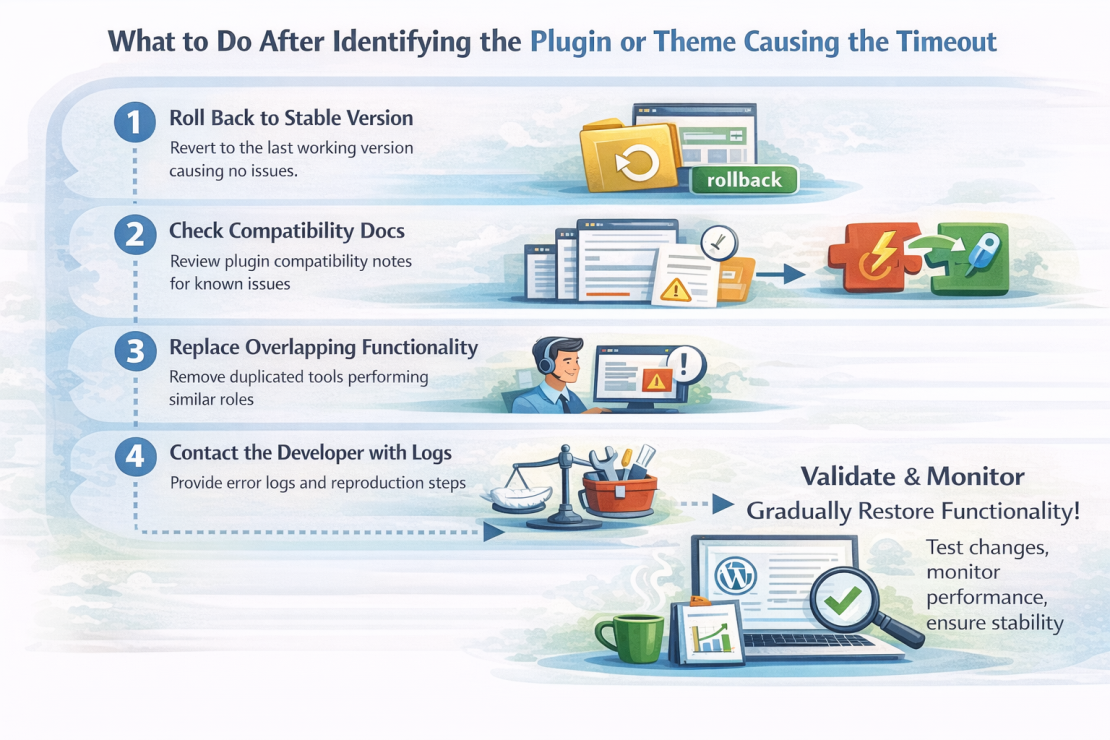
Here’s how you move forward safely.
- Roll back to a previous stable version
If the timeout started after an update, revert to the last working version. Many timeouts originate from compatibility changes rather than fundamental flaws. - Check compatibility documentation
Plugin developers often publish version compatibility notes. Conflicts frequently occur when a theme or another extension hasn’t caught up with a recent update. - Replace overlapping functionality
If two tools perform similar roles, remove one. You don’t need duplicate caching layers, duplicate SEO controls, or duplicate security filters. - Contact the developer with log evidence
Instead of saying “my site broke,” provide error logs and reproduction steps. Clear data accelerates resolution. - Consider lightweight alternatives
Some plugins add unnecessary execution weight. Replacing a heavy tool with a leaner alternative reduces the chance of another timeout forming under load.
During this stage, you may temporarily disable plugins WP-wide to confirm behavior after adjustments. That’s fine in a controlled environment. The key is not to leave the site in a partially functional state without validation.
Validate Before Restoring Full Functionality
After applying changes, reactivate related components gradually. Reload the previously affected page. Monitor performance. Check logs again. Stability must remain consistent across multiple refresh cycles and user roles.
Resolving a theme conflict timeout doesn’t end when the page loads once. It ends when the interaction layer performs reliably under normal usage.
When you approach the situation methodically, a resolved WP plugin timeout becomes an opportunity to simplify your stack rather than a recurring frustration.
When a WordPress Timeout Is Not Caused by a Plugin or Theme
You deactivate all extensions and switch to the default theme. You confirm the interaction layer is clean. And the timeout still appears. At that point, you’re no longer dealing with a typical WP plugin timeout. You’re looking beyond WordPress itself.
Blaming internal components when the external environment is unstable is like inspecting your car’s engine while traffic on the highway isn’t moving. The vehicle works. The road doesn’t.
Once you eliminate plugin and theme conflict timeout scenarios, the remaining causes usually fall into broader system categories:
- DNS resolution delays
If domain name resolution slows down, the request may never reach the server fast enough. In those cases, exploring a structured DNS fix timeout approach helps clarify whether propagation or misconfiguration causes the delay. - Firewall or security filtering interference
Aggressive firewall rules can block or delay legitimate requests, especially under specific conditions or IP ranges. - Server resource saturation
CPU spikes, memory exhaustion, or heavy concurrent traffic can stretch execution times beyond acceptable limits. - External API dependency failures
If your site depends on third-party services and those services respond slowly, requests may stall even if your WordPress stack is stable. - Hosting timeout issues under load
Shared resource environments can experience temporary bottlenecks when neighboring workloads increase unexpectedly.
Recognizing the Difference Between Internal and External Causes
Internal conflicts usually follow change events. You install something. You update something. The behavior shifts immediately. Environmental causes behave differently. They often appear intermittently, affect multiple areas at once, or vary depending on location and network path. That’s when widening your investigation scope becomes necessary.
Understanding this distinction prevents unnecessary troubleshooting loops. If disabling components doesn’t change the outcome, the root cause likely exists outside your plugin or theme stack. Clear separation between internal logic and environmental conditions keeps your troubleshooting efficient and focused.
Why Infrastructure Still Matters After You’ve Done Everything Right
You isolated the plugins, tested the theme, and confirmed whether the issue was a theme conflict timeout or something broader. At this point, you’re no longer guessing. You’re working with evidence, and that’s exactly where infrastructure starts to matter.
A WordPress site is dynamic. Every request pulls data from a database, processes PHP instructions, loads scripts, and generates output in real time. Even after eliminating the root cause of a WP plugin timeout, the quality of the execution environment determines how consistently your site performs afterward.
Reliable infrastructure reduces variability. When your hosting environment provides isolated resources, optimized PHP handling, and predictable response times, you eliminate the “background noise” that makes troubleshooting harder. You don’t wonder whether a slowdown comes from another account sharing the same server. Neither do you question whether security layers silently block legitimate requests. You remove uncertainty.
That’s where HostArmada fits in.
Our cloud-based infrastructure ensures that each account operates within its own resource boundaries. Built-in security systems reduce malicious load. Performance-optimized configurations help WordPress complete execution cycles efficiently. A 99.9% uptime guarantee adds another layer of predictability, which becomes critical when diagnosing or preventing hosting timeout issues.
Stable hosting doesn’t replace structured troubleshooting. It strengthens it. When you control your plugin stack, manage your theme correctly, and operate on reliable infrastructure, timeouts become easier to isolate and far less likely to recur. If your current environment constantly introduces unpredictability, reviewing your hosting plans becomes a practical evaluation rather than a reaction to frustration.
A well-structured WordPress site running on stable cloud infrastructure doesn’t eliminate complexity. It makes complexity manageable.
