Google's mail service (G Suite) is arguably the best possible mail service you can utilize. Google's brand is renowned worldwide, and they are known for keeping the reputation of their IP addresses in perfect condition, thus providing a 100% mail delivery rate. First, you need to register for their service. Please note that it has a monthly fee, based on your plan. Once you have signed up, you need to perform a few DNS tweaks from the cPanel. Note that your domain name MUST be pointed to our nameservers and use the DNS zone on the cPanel to accept these MX records.
Please follow the steps below:
- Log into your cPanel and navigate to the Domains section.
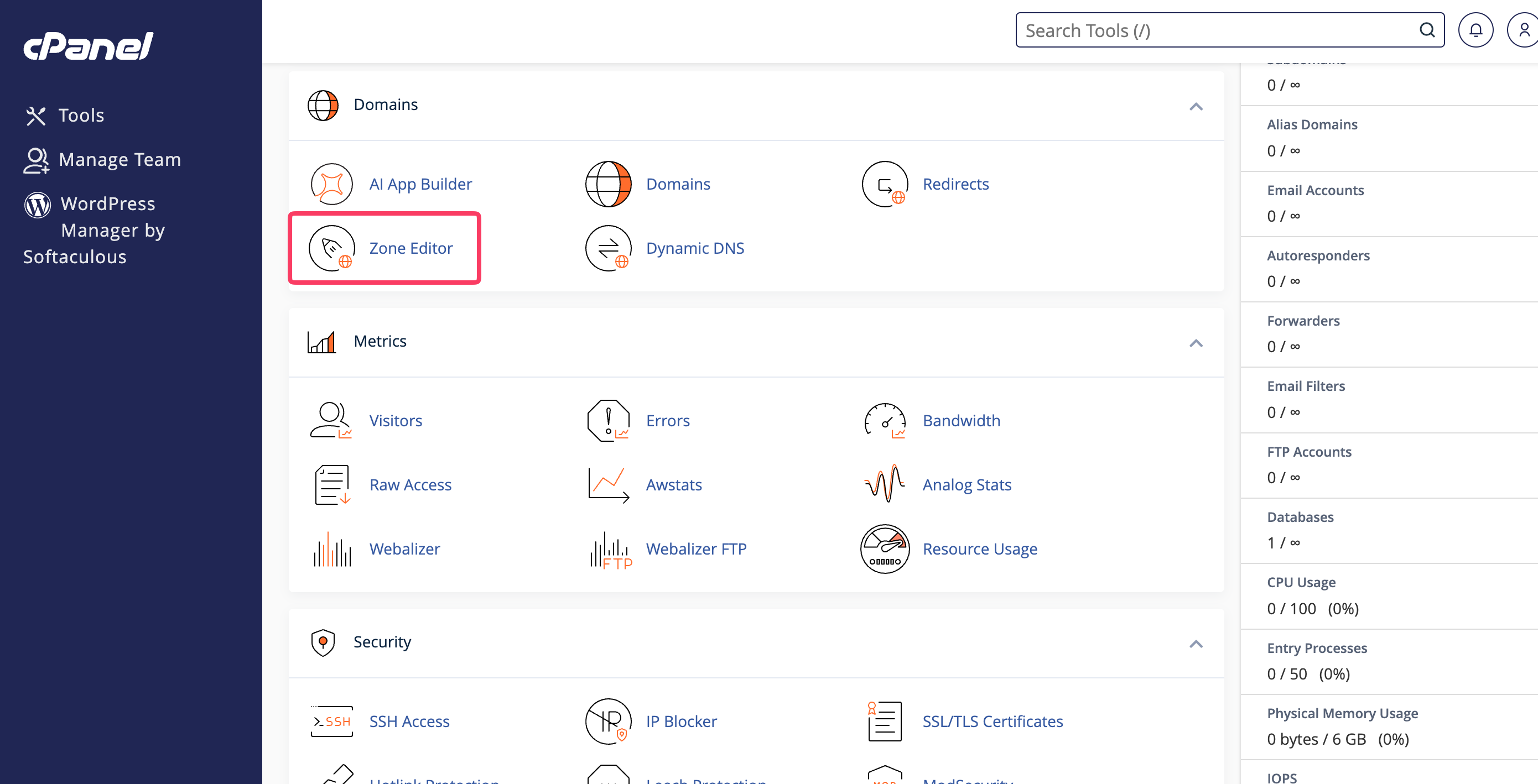
- Under the Domains section, please press the Zone Editor link.
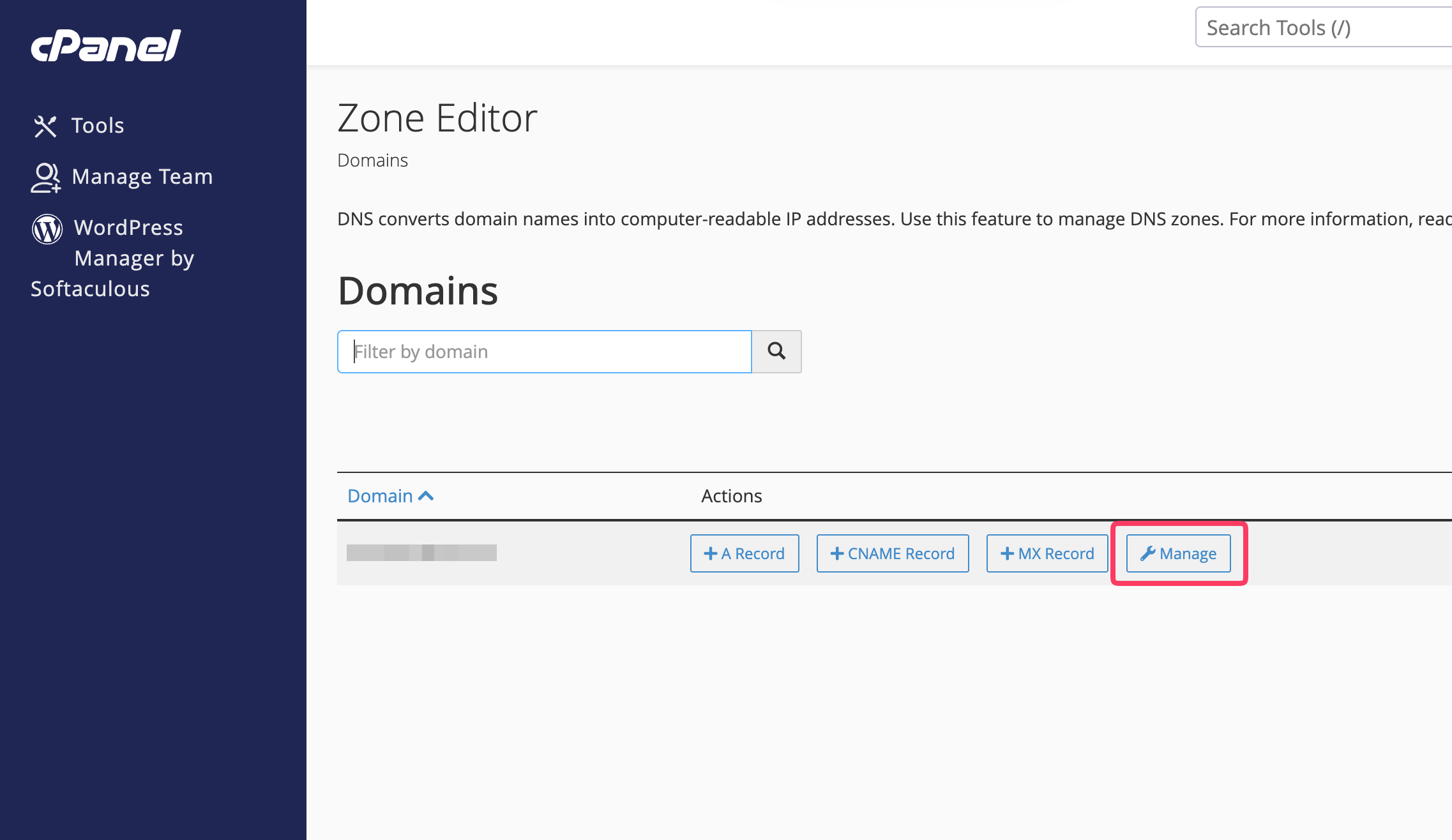
- Here, you will see a list of your domains. Click the Manage button in the row corresponding to the domain you want to configure with G Suite.
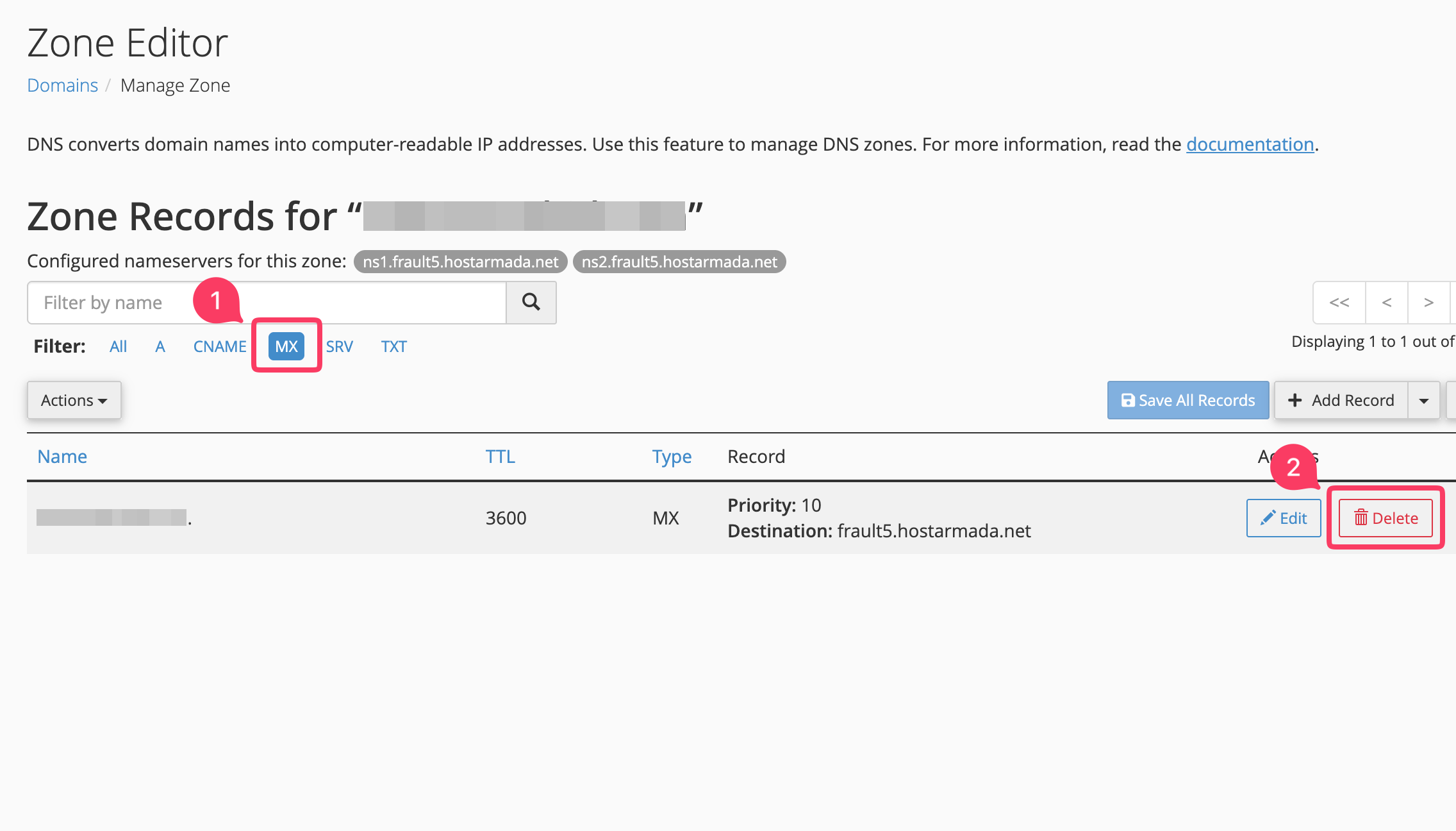
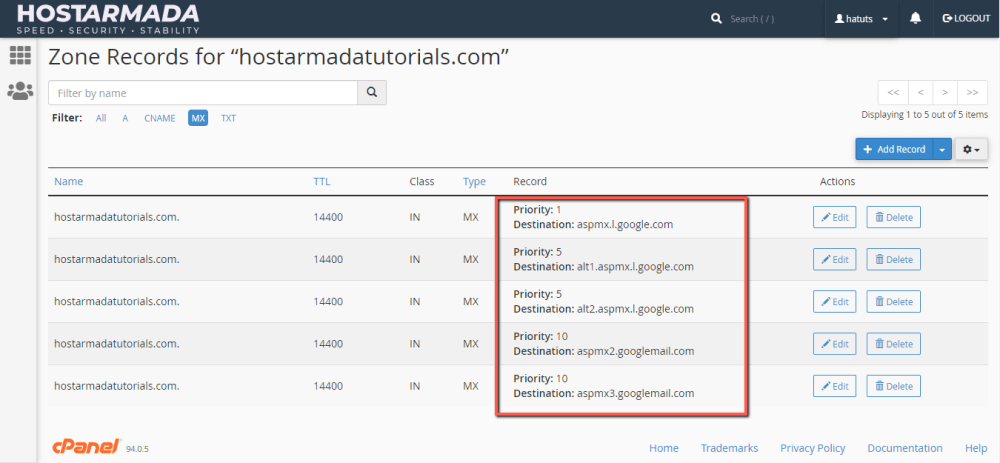
- Below the search bar at the top of the screen, you will have a filter that lets you choose the type of record you want to see. Please select the MX record.
- As soon as the MX records are displayed beneath, please delete them by pressing the Delete button on the right side of the domain's row.
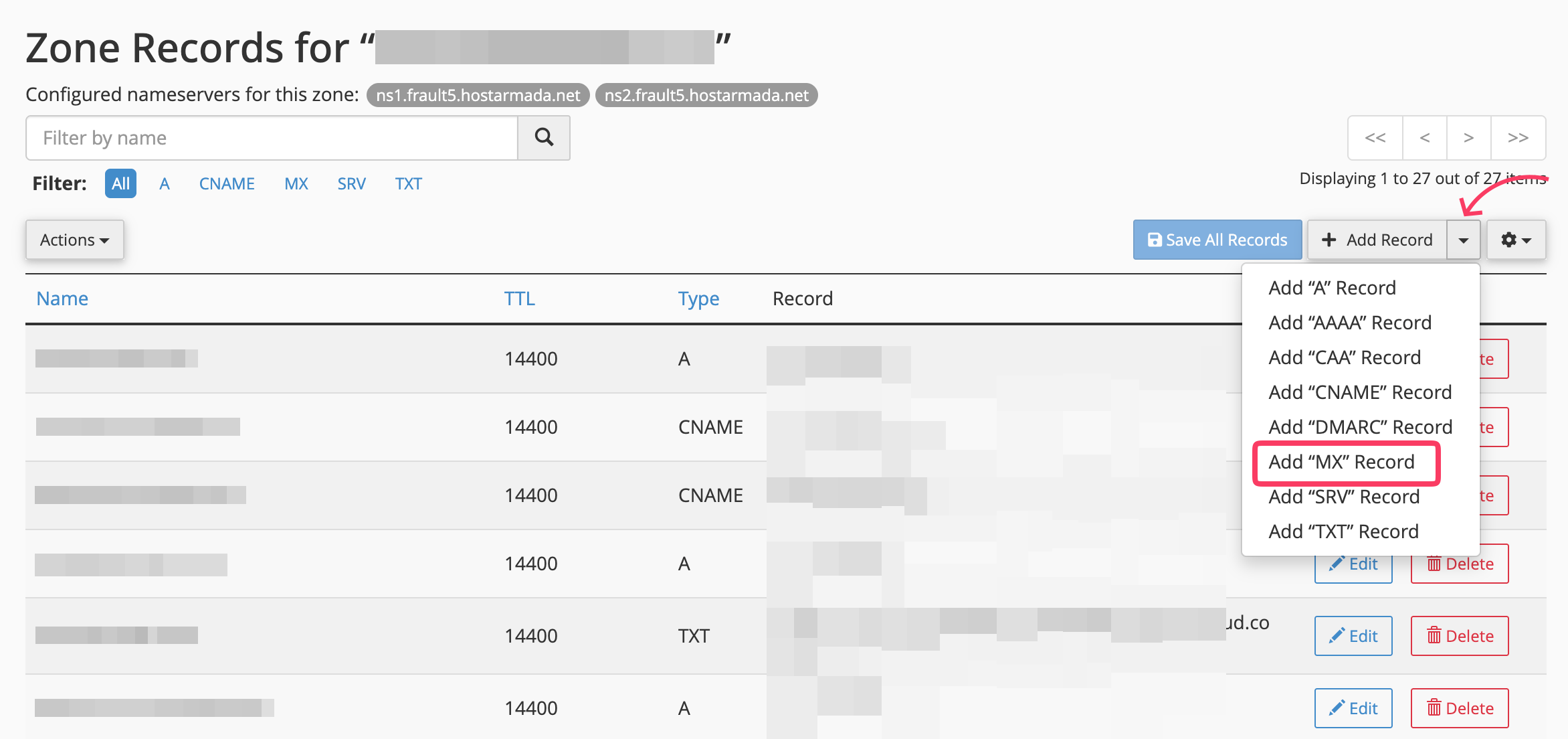
- Next, press the down arrow on the + Add Record button, and from the dropdown menu, select Add "MX" Record.
- Please add each of the MX records listed below, one by one:
| Priority | Record |
| 1 | ASPMX.L.GOOGLE.COM |
| 5 | ALT1.ASPMX.L.GOOGLE.COM |
| 5 | ALT2.ASPMX.L.GOOGLE.COM |
| 10 | ASPMX2.GOOGLEMAIL.COM |
| 10 | ASPMX3.GOOGLEMAIL.COM |
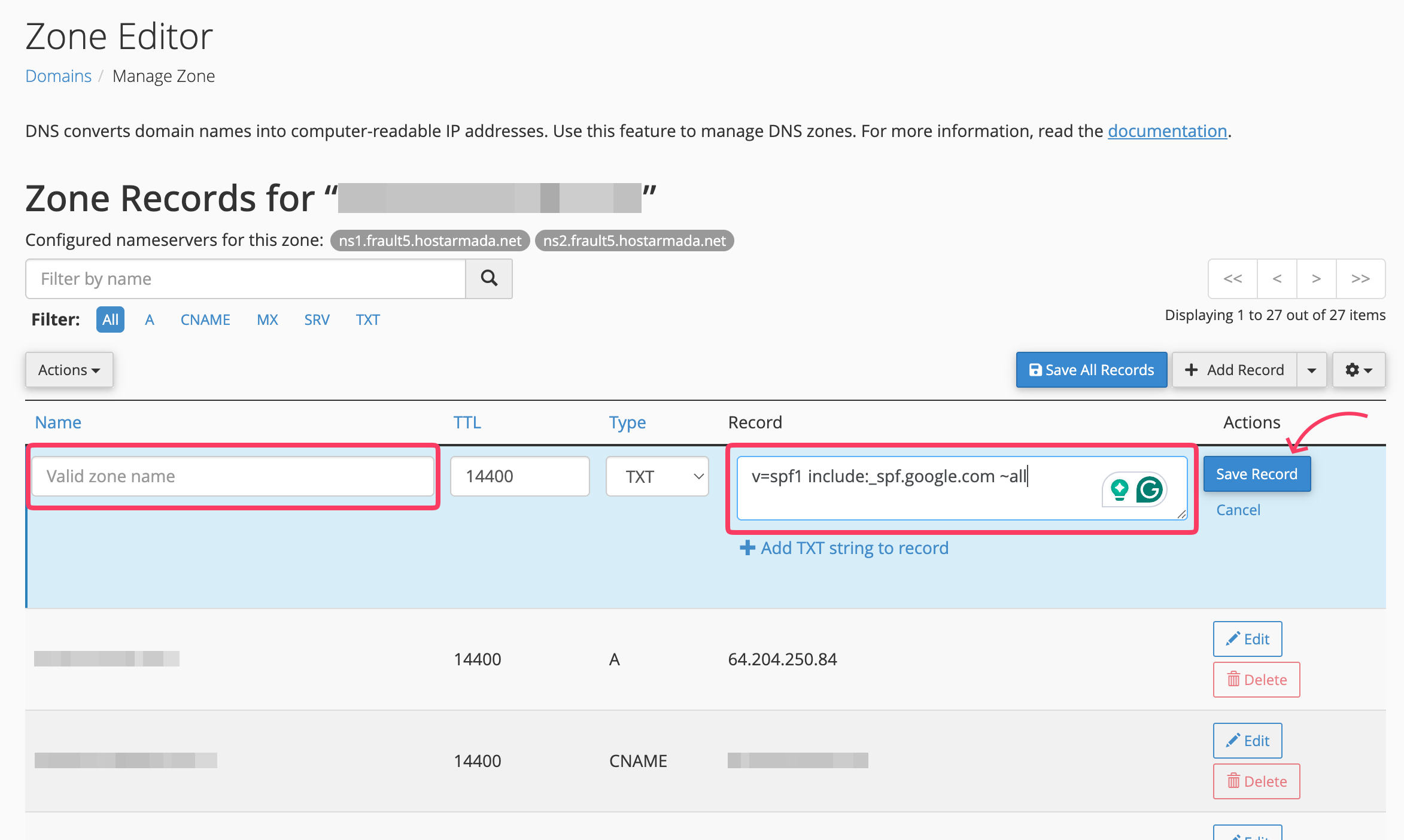
- Now, click the same dropdown menu and select Add "TXT" Record.
- In the text field under the Name column, enter your domain name
- In the text field under the Record column, enter the following and click Add Record:
v=spf1 include:_spf.google.com ~all
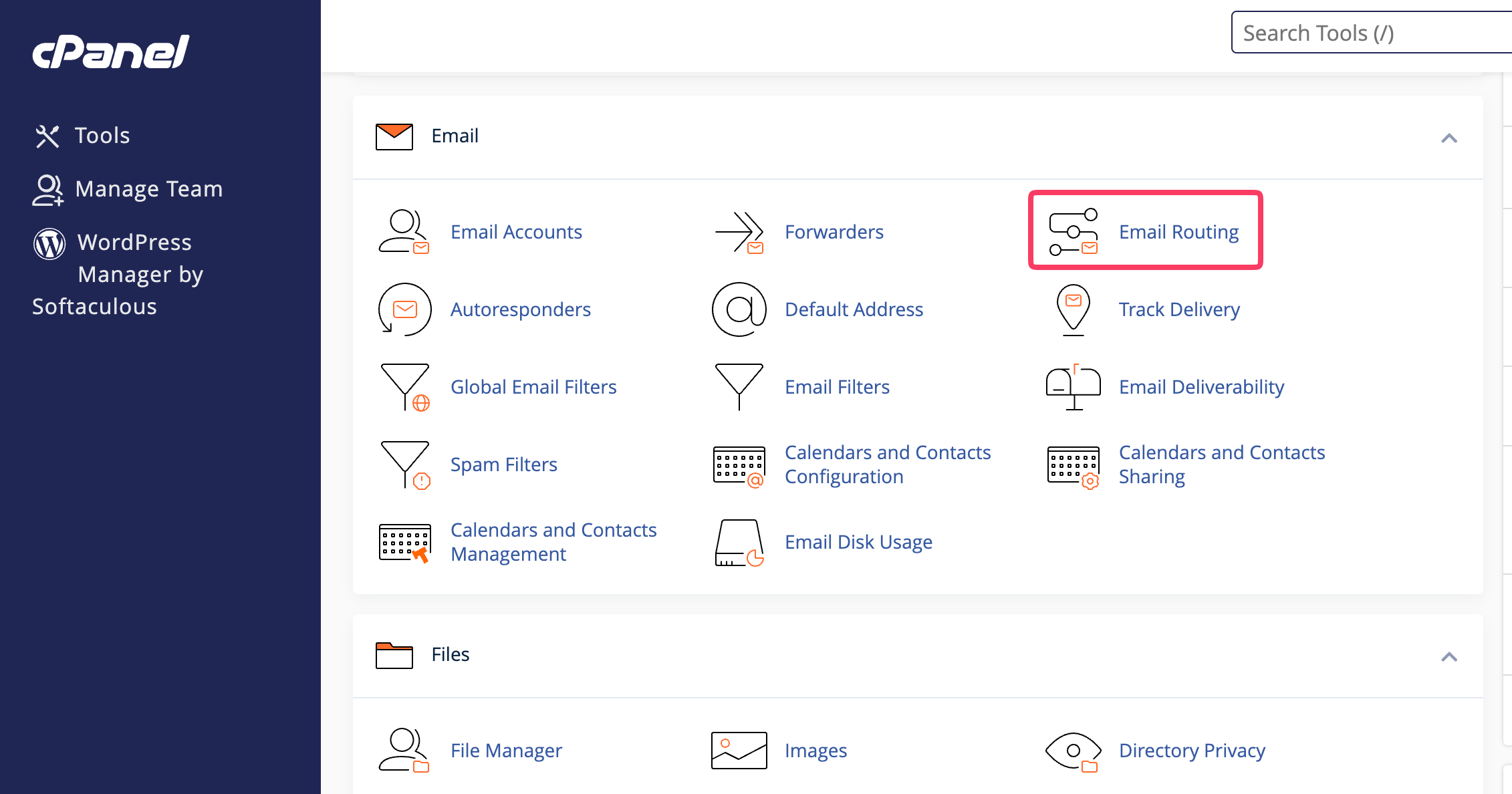
- Once done, navigate back to the cPanel dashboard and click Email Routing.
- Select the domain you just added the Google MX records for and select the Remote Mail Exchanger radio button.
- Click Change to apply the change.
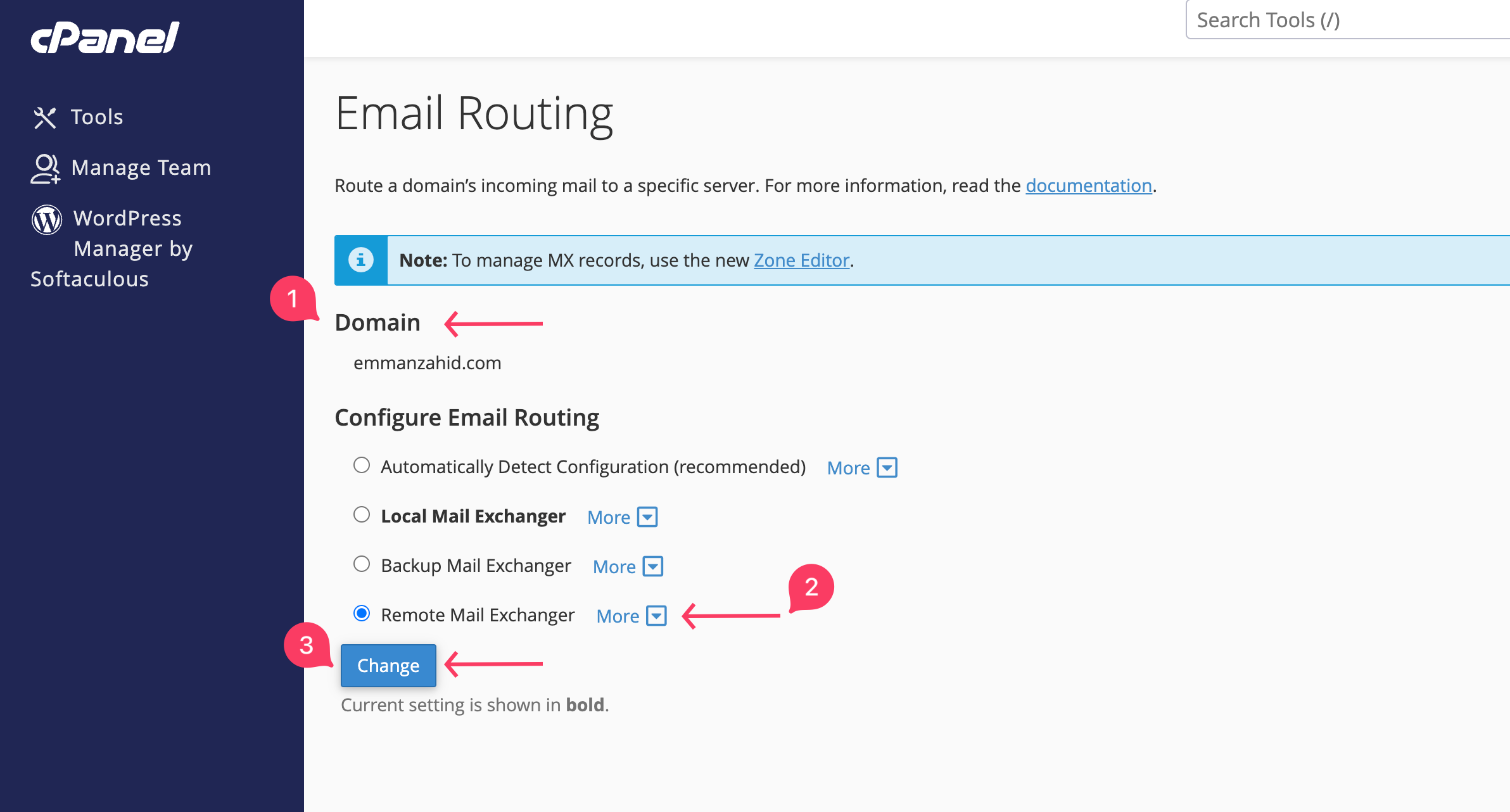
The above change will trigger the propagation period, which can take up to 24 hours to complete and update the changes.
Keep in mind that by doing so, you are configuring your mail service with Google, and any email accounts you have at HostArmada will no longer be operational.
